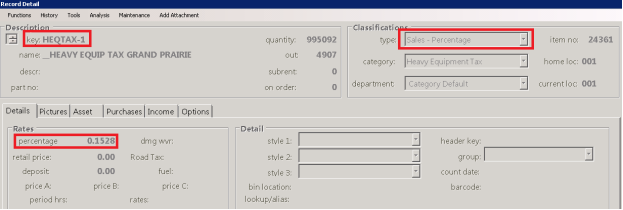
Typically, a tax like this would be accomplished using the Item Percentage field in the item record. Due to the complexity of this tax and restrictions on the Item Percentage field you must use a Sales-Percentage Item to accomplish the objective. This document will guide you through the process for setting up and charging on this tax. If you have any questions or need advice regarding the tax itself, please contact your tax adviser, as we cannot make recommendations or suggestions. If you have questions about the set-up please call the support line.
Link to information about the bill including the actual tax.
http://www.legis.state.tx.us/billlookup/History.aspx?LegSess=82R&Bill=HB2476
1. Setup Texas Heavy Duty Equipment Tax only.
a. In File Maintenance, add a new item.
b. Set the KEY to your choosing (example: HEQTAX). See Illustration A Below.
c. Set the Name to your choosing (example: _HEAVY EQUIP TAX CITY NAME) See Illustration A Below.
d. Set the QUANTITY to 99999. See Illustration A Below.
e. Set the TYPE to "Sales-Percentage." See Illustration A Below.
f. Set your category accordingly. If you want to post the income generated to a specific GL, you can use categories to accomplish.
g. Set the percentage field to the tax percentage desired. In this example 0.1528 will equal 0.001528. See Illustration A Below.
h. Set the NON-TAXABLE field accordingly. If you do not charge tax on top of this tax then check the box to mark it non-taxable. See Illustration B Below.
i. Enter HEAVYEQTAX in the user defined 2 field. See Illustration B Below.
j. You can enter a description in the Print Out tab if desired. See Illustration C Below.
k. Click OK when done.
l. If you are a multi-store system and have different tax rates at each location create a record for each and include a -1, -2 on the end of the key. (i.e. HVEQTAX-1, HVEQTAX-2, etc...)
A.
B.

C.
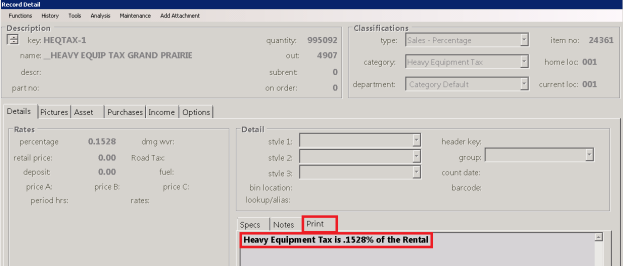
As stated in HB 2476, "The owner of the equipment shall state the amount of the unit property tax assigned as a separate line item on an invoice." The way we interpret this is that the tax amount cannot be included in the regular state sales tax printed on an invoice. The above accomplishes that and is within the spirit of the law.
2. Setup Texas Heavy Duty Equipment Tax and 50HP Diesel Engine Surcharge (combined item).
a. You will only need this item if you have inventory that is 50HP Diesel Engine- if you do not have applicable inventory, skip this step.
b. In File Maintenance, add a new item.
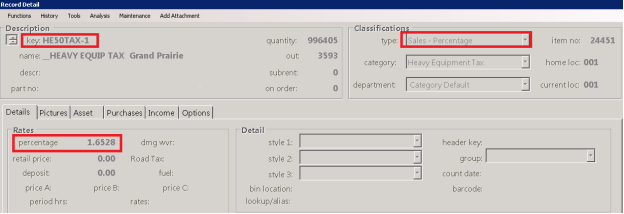
c. Set the KEY to your choosing (example: HE50TAX). See Illustration A Below.
d. Set the Name to your choosing (example: _HEAVY EQUIP TAX CITY NAME). See Illustration A Below.
e. Set the QUANTITY to 99999. See Illustration A Below.
f. Set the TYPE to Sales-Percentage." See Illustration A Below.
g. Set your category accordingly. If you want to post the income generated to a specific GL, you can use categories to accomplish.
h. Set the percentage field to the tax percentage desired. In this example 1.6528 will equal .015 (1.5%) for the 50HP Diesel Engine Surcharge and 0.001528 (.1528%) for the Texas Heavy Duty Equipment Tax. See Illustration A Below.
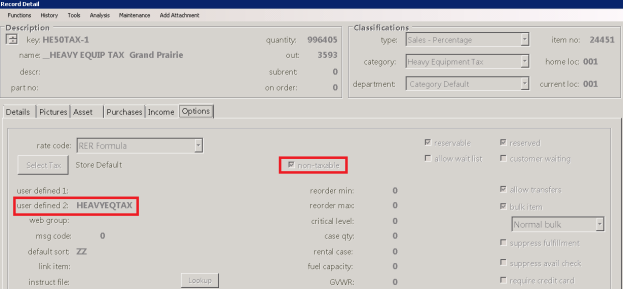
i. Set the NON-TAXABLE field accordingly. If you do not charge tax on top of this tax then check the box to mark it non-taxable. See Illustration B Below.
j. Enter HEAVYEQTAX in the user defined 2 field. See Illustration B Below.
k. You can enter a description in the Print Out tab. See Illustration C Below.
l. Click OK when done.
A.
B.
C.

3. Apply the applicable Tax Items to the Equipment.
a. Modify the header record.
b. Choose the appropriate TAX item for each piece of equipment. If the equipment is subject to only the Texas Heavy Duty Equipment Tax, use that specific TAX item; if it is subject to both the 50HP Diesel Engine Surcharge (TERP) and the Heavy Duty Equipment Tax, use the combined item.
c. In the link item field, put the letter "o", then the key of your item, then #1. In this example, oHE50TAX#1. (do not include the -1, -2 if you are multi-store)
The result: upon opening a contract with a qualifying item, it will put a quantity of 1 of the TAX item underneath the rental item. The TAX item will automatically charge the appropriate percent of the rental amount of the item above it (1.6528% is just an example).
d. Click OK to complete.
e. Repeat from step A until all header records are marked.
f. If you do not have header records enter this in each serialized record.
Illustrated example:
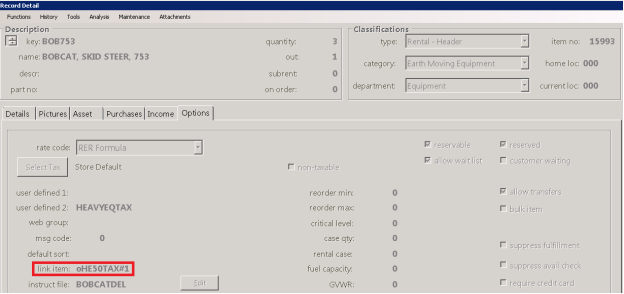
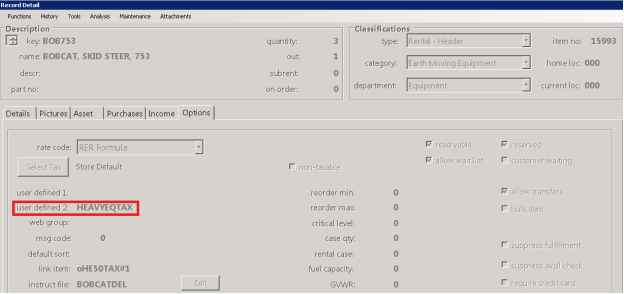
4. Mark all items that are considered Heavy Equipment (items over 1500#).
a. Modify all Header Records and all Serialized Records.
b. In the options tab, in user defined 2, type in HEAVYEQTAX. This is required for reporting.
c. Click OK to complete.
d. Repeat from step A until all equipment is labeled.
Illustrated example:
Things you need to know:
•When a contact is written, the TAX item will display below the rental item, and calculate the percentage automatically. Do not move this item.
•Multi-Store systems with varying tax rates will be prompted to select a TAX item.
•When renting or selling a Sales Item subject to the TAX, the tax item will automatically be added to the contract.
•When selling an asset, you will first add the asset then manually add the TAX item.
5. Instructions for making a percentage rate change on the Sales Percentage Item: Do not modify the percentage on the original item.
a. Modify the original item by adding ‘.old’ to the end of the key and save.
This will prevent the item from being used moving forward.
b. Make a copy of the old record: Remove ‘.oldcopy’ from the key
c. In the Percentage field change to the new percentage
d. ADDITIONAL ACTION REQUIRED: Any reservations or quotes containing the old percentage item should be modified, old percentage items removed, then re-added with the new item.
Things you need to know:
•Writing a new contract will use the new item and charge the new rate automatically.
•When continuation billing a contract the old item will be maintained until the item is returned and the contract is closed (this is in-line with the requirement noted in the link at the top of this document).
•Modifying rates on a previously closed contract will maintain the old percentage rate.