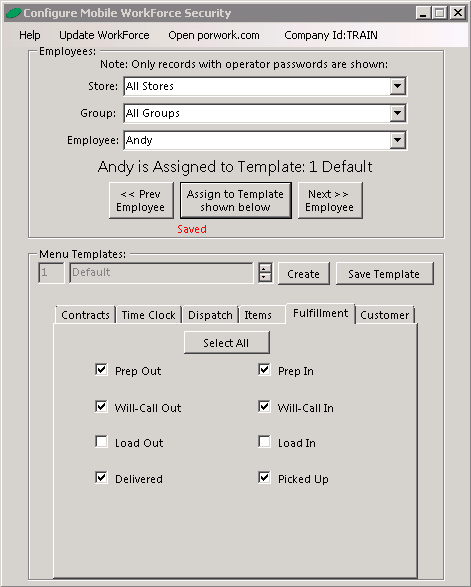
Overview: Mobile WorkForce allows for varying Menu Templates that dictate which WorkForce tasks are allowed for an employee.
*You must first setup your Operator ID’s correctly. (see Employee Setup)
*Note: It may take up to 15 minutes for changes to take effect and you must exit the configure utility for changes to save.
6. From the Program Menu, select #10 Security.
7. Select Configure WorkForce Security
8. Make note of your WorkForce Company ID noted at the top of the configure screen. Your employee will need this to login.
9. In the Menu Template section, use the create button to create a new template for an employee or a group of employees. Templates are used to control what functions your employees’ will have access to when using Mobile WorkForce.
a. Name the new template
b. Select the actions that will be available to the employee by checking the appropriate box
c. Save the template
• Note – if you are scheduling a crew, you can set a default template called (In/Out) and enter the selected Drivers and helpers to this list. This will allow them to log into Mobile Workforce and clock in and out.
10. If you modify an existing template (use the up/down arrows next to the Create button) be sure to save it when done.
11. Select your employee by changing the Store, Group, and Employee selection
12. Press the Assign to Template button to assign the employee selected to the selected template
13. Repeat this process until all applicable employees are assigned to the appropriate templates.
14. As you assign / select employees, you will see the assigned template (see image below).