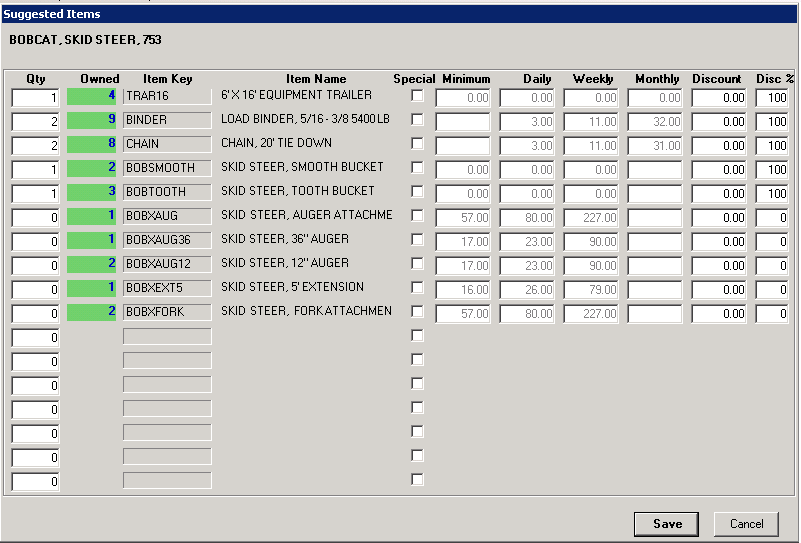
This option allows you to view or select the suggested items for the currently selected item. When you setup the suggested items, you simply select the suggested item and optional set the quantity for each of the suggested items. The quantity you enter will be the default quantity when this item is rented. If you rent two of the current item, then the default quantity will be two times the number you entered. You can enter a zero for the quantity desired. Then the suggested item will show on the screen with a default of zero. The counter person can accept zero or type in the quantity the customer is getting. This allows you to put all of the related items on one screen for the counter person to quickly and easily enter all the items the customer is getting.
You can define a Special Price for each suggested item. To do this check the Special Price checkbox, then enter the pricing you desire. You can also define a discount dollar amount or a discount percentage amount.
Standard Suggested Items List
Allows the counter or sales person to select suggested items quantities while writing the contract.

Quantity,
Check Box, and Multi Select Options
These options can be used if the suggested item would always be added at the same quantity, or you offer a specific quantity at a reduced rate. For example, a Skid Steer would almost never rent with more than one trailer.
•After entering the quantity for the suggested item, press enter or tab to open up the options drop down.

Quantity
Allows the counter or sales person to select a suggested items quantities, while writing the contract.
Check No
When the main item is added to a contract, the suggested items will appear with blank checkboxes. Checking each box will add those items to the contract at the discounted amount. Adding them outside of this window will add them at their standard price.
*Note: Hover your mouse over the check box will display the quantity that will be added to the contract if chosen.
Check Yes
This will look identical to check no, except for the boxes being automatically checked. Clicking OK will automatically add them. Un-checking the boxes or clicking cancel will leave them off the contract.
Multi Select
This is useful when a customer gets a choice of one free attachment for a rental item and any additional attachments would be charged at standard rental rates. Multi-select prevent the user from selecting more than one multi-select item in a suggested items list. For example, a customer may get a free bucket or a free set of forks with a skid steer rental. The user can never select more than one item.
*Note: You can build in attachments a second time to allow the user to select additional attachments at standard rental rates.
Multi Yes
Simply pre-selects the most common attachment. While you can set more than one item to Yes, only the last item set to Yes will display as being selected.
*Important note – Any item in a suggested items list with an item type of Rental Accessory will be added to the contract at zero cost not matter what the rates are set to.
Example (combines all three methods)
This example gives the customer a choice of a Smooth or Tooth Bucket, or a set of Forks for free (Multi Select). If they want additional items for charge they can choose below (Check No). Since the quantity of Ear Protection can vary with each rental, they are left at Quantity so the user can enter when writing the contract.

Advanced Usage of Suggested Items
Large Suggested Items List:
•Create an item with the item type of Rental – Package
•Add the rest of the suggested items to that package under its suggested items
•Add the package to the original item under Tools>Package Items.
The user will go through the first list of suggested items on a contract, and then the suggested items from the Rental Package item. It will simply appear to the user as two pages of suggested items.
Generic Suggested Items
Items such as expandable tents may all have the same securing materials. Instead of adding stakes, water barrels, cement weights and other securing items to each tent individually, an item with the item type Rental – Package can be created.
•Create an item with the item type of Rental – Package (name it something like, “Tent Securing” in this case)
•Add the generic items to the Suggested Items to that package
•Add the package to the multiple rental items that would use those suggested items under Tools>Package Items
This way any changes made to the tent securing inventory (such as a new tent stake added for beaches) only need to be made once to the securing package, rather than every tent in inventory.
Here is a visual for how this works
Rental Item
Suggested Items (directly linked to the rental item)
Suggested Item #1
Suggested Item #2
Suggested Item #3-#17
Package Items (directly linked to the rental item)
Suggested Items – Rental- Package #1 (a separate item used for suggested items)
Suggested Item #1
Suggested Item #2
Suggested Item #3-#17
Suggested Items – Rental- Package #2 (a separate item used for suggested items)
Suggested Item #1
Suggested Item #2
Suggested Item #3-#17
Suggested Items – Rental- Package #3 (a separate item used for suggested items)
Suggested Item #1
Suggested Item #2
Suggested Item #3-#17