Note: We do not recommend using Subrental Purchase Orders; this is an outdated function and will eventually be removed from the program. Subrental contracts are the correct way to handle a subrental.
To track Subrental cost and the income generated you have the ability to create Subrental contracts. The Subrental contract will not generate income or accounting balances; that is handled by the contract you write for your customer. They simply track what is being Subrented, for how long, from which vendor, and the cost of the Subrental (if the data is entered). The Subrental contract also interfaces with the dispatch module for scheduling the pickup and return of the Subrented equipment.
You can create a single Subrental contract per vendor for multiple items having the same date range. If you are Subrenting five items for five different contracts for the same length of time they can all go on one Subrental contract. If you are Subrenting five items for five different contracts for five different lengths of times they need to be on five separate Subrental contracts.
A couple of database items will have to be addressed first.
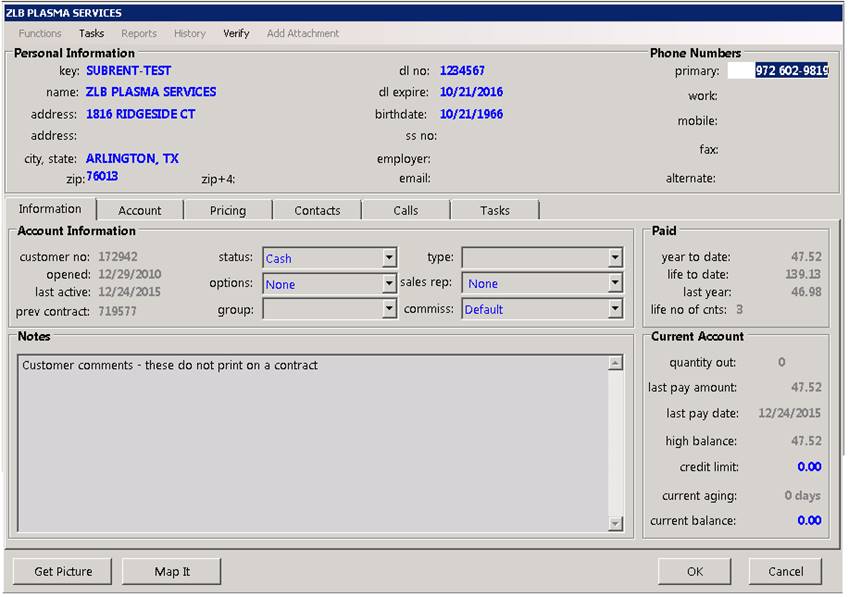
• You will need to create a customer file for each company you Subrent from. The Key of this customer record must start with “SUBRENT-“. So you might have a “SUBRENT-UNITED” or “SUBRENT-BOBSRENTS”. The status would be “Cash”. If you plan on creating PO's from your Subrental contracts the Key should be “SUBRENT-1234” (1234 is the vendor number in the Purchase Order Module). This will allow Point-of-Rental to create a PO for the correct vendor. If your vendors give you a discount you will want to assign a discount table so the proper discount is applied every time a Subrental contract is written.
• If you are Subrenting bulk inventory items such as scaffolding, tables or chairs you won’t need to create any new item records unless you want to breakout income from Subrentals separately (the Subrental Analysis Report can show you your subrental income). If you do, however, in the item file you need to make sure the, "bulk item" box is checked. You must indicate the quantity you will allow your staff to subrent in the "Subrent" field. If inventory is limited in your area enter zero in the "Subrent" field.
• If you are Subrenting serialized equipment such as lifts or backhoes you will need to create new item records for those items before they can go on the Subrental contracts. They will be set up exactly like any other serialized item but have a quantity of zero as you don’t own the item. They can be generic ( i.e. “Backhoe SR” ) or you can create specific records with serial numbers. It is up to you. Generic records may be repeatedly used but you won’t have specific information about what type of equipment is being rented. You should enter something in the key or the name to indicate that the item is a Subrental item (i.e. BACKHOE#SR01, BACKHOE#SR02, ETC…). Also, indicate in the “Subrent” field the quantity you will allow your staff to overbook to a customer that is not a SUBRENT- customer. In a serialized item it should be 1.
• If you want to break out the Subrental income separately from regular income you will need to create an Item Category for Subrental items or add a G/L Income Account to any category that has subrental items (don't forget to assign the correct G/L number to the subrental item). The category will need to be assigned to the correct G/L number. Lastly, assign your Subrental equipment to that category. This is only necessary if you wish to break out the income; if not, assign your Subrental items to the appropriate category for the type of item. With the Subrental Analysis Report this is not really necessary as you can run a report at any time to see what your subrental income was for any period.
You are now ready to create a Subrental contract.
The Subrental contract is created as a reservation for the period of time you need it. The quantity available for that time period will be adjusted as soon as the Subrental reservation is written; eliminating any overbooking created and allowing an accurate availability view for you and your staff.
1. First you need to actually overbook the item you are going to subrent by writing a reservation for it. If the qty of the item is 0 for that date range and there is a qty in the subrent field of the item file the system will ask if you would like to submit a subrental request. Click yes.
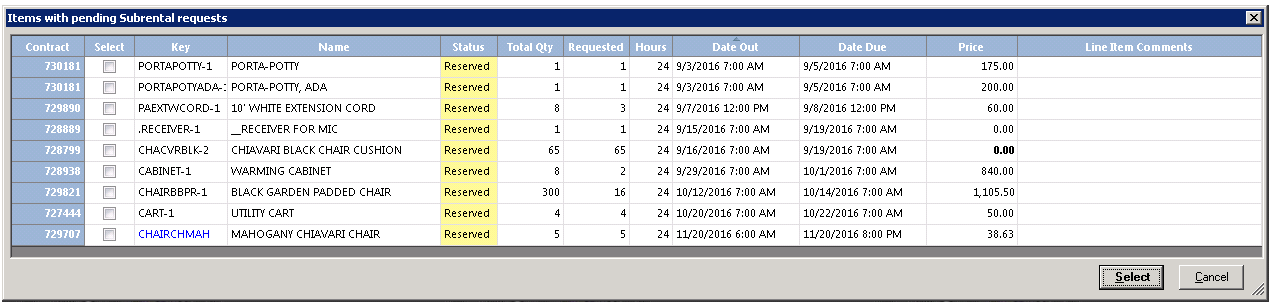
2. Go to Counter System>New Contract>Subrental Contract. A list of the pending subrentals will be displayed were you can check the boxes of the items you are subrenting from the vendor.
3. The system will find every vendor that you have subrented those items from in the past and allow you to select the desired vendor.

4. The pending subrented items checked will be added to the subrental contract. The items will be automatically linked to the contract where the item were overbooked. You will see the contract number under the control link field on the subrental contract.
Note – The Event Date on the subrental will be the same as the date on the contract the item was overbooked on. If Mulitple item are checked, then it will use the date of the earlies out date and the latest due date to enter on the subrental contract.

5. You can also manually select items using the Inventory Selection screen just as you would when writing a regular contract or you can use the "Pending Subrental" menu option at the top of the Contract Processing Screen (if you submitted the subrental request). For bulk items simply select the actual item (i.e. scaffolding part, table, chair). Choose the quantity required. When manually selecting items you will be asked “What contract is this item being subrented for?”. Point of Rental will use this contract number for reports concerning Subrental profit and loss; it is important to enter the correct contract number . If you do not enter the contract number the Subrental Analysis Report will not be accurate. Add all items that you are Subrenting from this vendor for this time period.
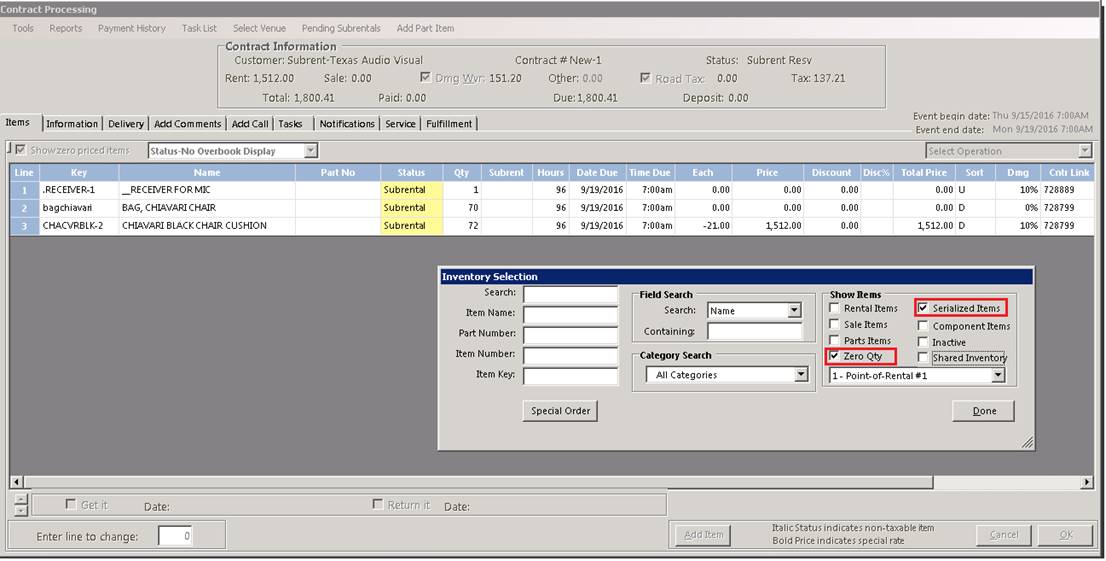
6. When using the Pending Subrental selection screen, all Subrental Requests for the time period selected on the subrental contract will be listed. You will not be asked for a contract number as the system already knows what contract the items are being subrented for.
7. It is important to enter your cost for each item being Subrented. Right click each item and choose “Set Special Rate”. Equally important, is setting the Daily, Weekly and Monthly rate regardless of how long you think it will be rented for. If for any reason you keep it for more or less time than anticipated, your cost will calculate correctly. Any discounts you receive should also be set at this point.
8. You will be asked "Do you need to pick this item up from the vendor?" If your vendor is delivering the equipment directly to your customer for you or will deliver to your shop you can answer no. If you will be picking up the items with your truck, answer yes. If you answered yes, you will be prompted to select both Pickup and Return dates. Use the delivery notes section to indicate any special instructions.
9. Next, from the print screen you can print a copy if you wish. The contract number will start with an “s” indicating that it is a Subrental contract. You now have a Subrental reservation. The system now knows these items need to be picked up and for what contract. And by utilizing the “Subrental” tab on the Day at a Glance screen you are able to track the status of your various Subrental contracts.
10. Once you take possession of the Subrented item(s) and before you send out your customer’s reservation, you will need to send out the Subrent reservation. This will temporarily increase the quantity of those items for the specified time period and make them available for your customer’s contract. From the Day at a Glance screen you can send out the Subrental contract by right clicking on the contract and Selecting “Send out Subrent”. This is just like sending out a regular reservation and it changes the status to “Subrent Open”.
11. Using the Day at a Glance screen and looking at your “Subrent “, “Delivery”, or “Pickup” tabs you will be able to see Subrental reservations, open Subrentals, Subrental returns, etc… and be able to send out, modify or close as needed.
12. When the equipment has been returned to your vendor it will be necessary to close the Subrental contract (this is done the same way you would close a rental contract), adjust your item cost and add any freight or extra charges.
13. After a Subrental contract has been closed you can create a PO from the Tools Menu in the top left corner of the contract screen by selecting “Create PO”. Creating a PO is only necessary if you are importing your PO’s into an accounting package as invoices to be paid.
14. The Subrental cost assigned to each item will be posted to that items Subrental cost in POR and you will be able to see, by looking at the item record, the income generated and cost incurred by the Subrental.
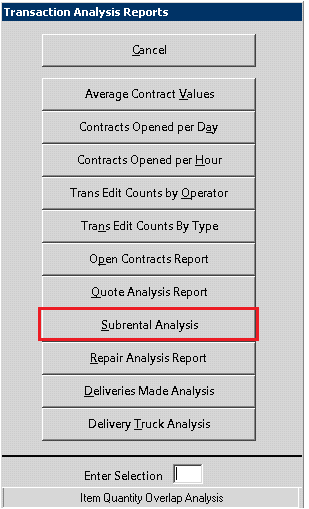
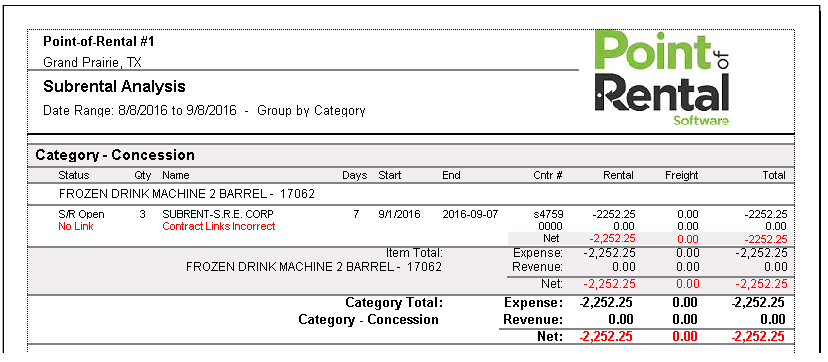
Be sure to review the Subrental Analysis Report in the Analysis Reports section.