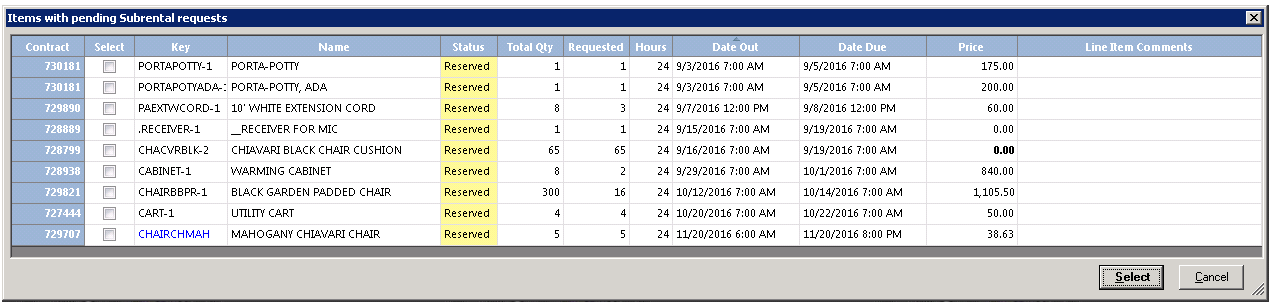
From Counter System>New Contract>Subrental Contract, you can create the subrental contract linking the subrental contract to the original contract that the item was overbooked.
When selecting Subrental Contract, you will be given a list of all the pending requests.There is a checkbox next to each requested item. You can check each item that you will subrent from the vendor. Once finished, the system will find every vendor that you have subrented those items from in the past and allow you to select the desired vendor.
Enter select and you can select the vendor for the Customer Selection screen.

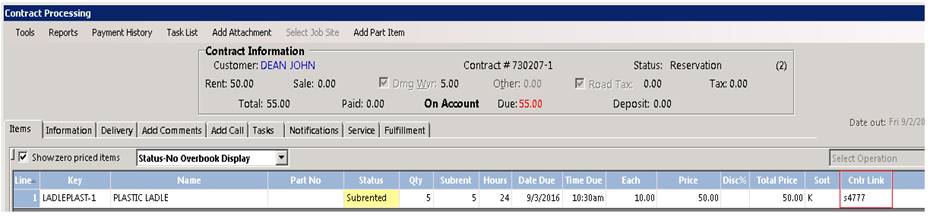
The pending subrented items checked will be added to the subrental contract. The items will be automatically linked to the contract where the item were overbooked. You will see the contract number under the control link field on the subrental contract.

When you go back to the original contract, you will see the subrental contract number linked to the contract.
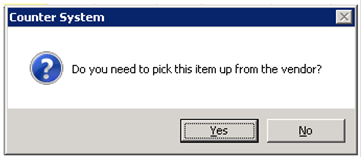
When all the items have added to the subrental contract, you wll be asked if you are picking up the items or is it being delivered.
In the rental contract the column called Subrent can be turned on to see Pending and Processed subrental requests. (see the How To Guide for Customizing Columns)

Note: Pending requests show as Pending and Processed show the quantity only in the Subrent column.
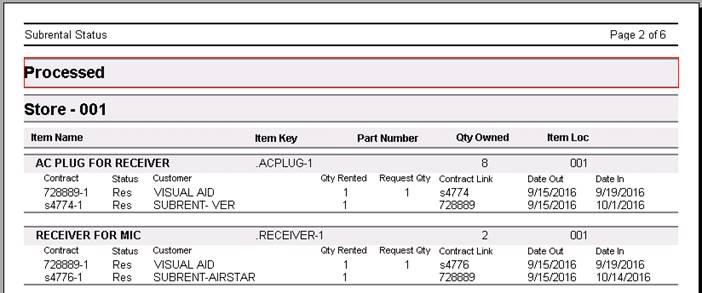
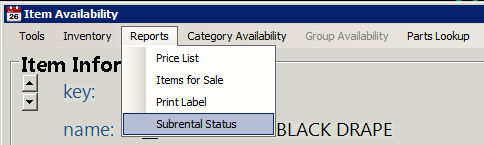
In Item Availability the Subrental Status Report can be run to show Pending and Processed requests.
Pending Example:

Processed Example: