
Starting with Point-of-Rental v2013, setting up auto-close is easier than ever. Auto-close is not normal and a customer set to be auto-close has requested it. It is the alternative to manually doing an end of day. If the company has more than one store, only the main store needs auto-close setup. The other stores can still manually close or set their Parameters to auto-close after the main store auto-closes.
Browse Program Menu > Configuration > System Configurations > Configure Task Runner.
Click the Add Task button.
A Create New Task window opens.

Enter the following information into the respective text boxes. The Start Time can be different depending on when you want the auto-close to happen. The drive letter for the File to Run and Start in Path text boxes can be different, too, depending on the drive letter the Point-of-Rental program is installed on.
Click the Save button when done. You will be taken back to the Configure Task Runner window where you can see your newly created task.

Make sure the PORTaskRunner Status is running. If not, click the Start button. If this isn’t started the task(s) will not run. If this is the only store the company has then you are done.
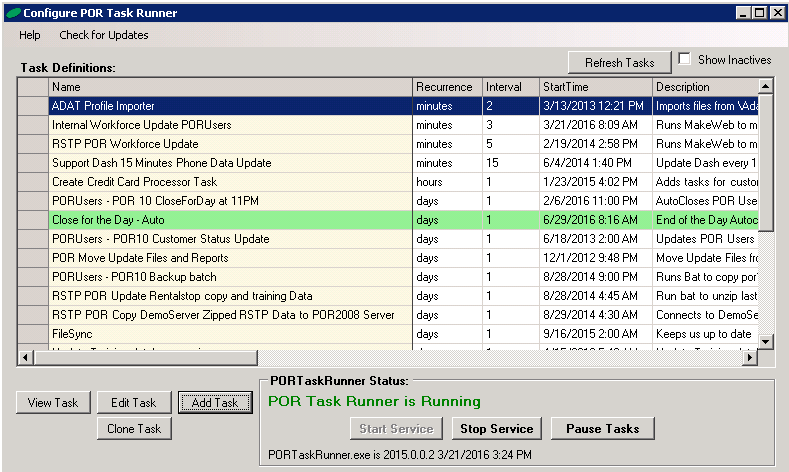
•Note: If you no longer want to run the task, you can not delete, simply check the box in the upper right corner to mark the task as inactive.