
You have the ability to set a special rate for a particular customer, Customer type, or by store. A screen will be displayed that allows you to view, modify, or add special rates set for this item. The screen looks similar to the following:
You can modify an existing Special Rate by clicking on the line item or you can add a new Special Rate by clicking the Add button. In either case, you will be taken to a screen similar to the following:
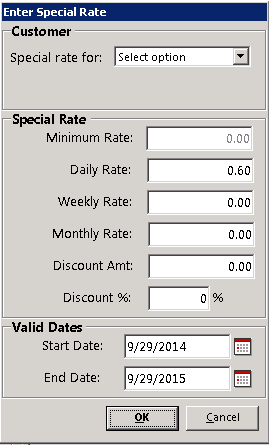
You can define a Special Rate for an individual customer, for ALL customers that are assigned to a specific customer type (for example all Re-rent customers), or for a particular store. To do this, enter the new rates in the appropriate boxes. When adding a new Special Rate, the rates will default to the normal rates for the item. You can also define a discount dollar amount or a discount percentage amount. Normally if you define a discount dollar amount or a discount percentage amount, you would set all of the special prices to zero. In this way, the discount will be taken off the standard pricing for the item. Here is a sample screen that would give 30% off to all customers of type SUBRENT:
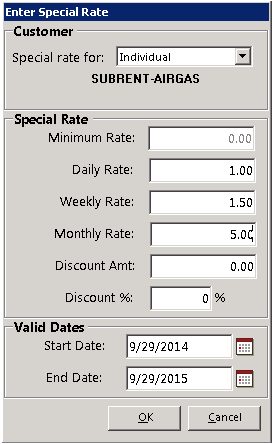
You will also need to define the valid dates of the Special Rate. The system will automatically default to a one year period. You can override the default to define any period you desire. For example, you could give a Special Rate to a customer only for the month of December. If a reservation is written outside of the valid dates of the Special Rate, then the item’s standard rate will be used. Note: If you want to cancel a Special Rate, simply change the valid dates so that it is no longer valid.
To keep employees from clicking on a price to change it- should always use set special rate. Security levels can be set through System security. Click on th followng link System Securitiy