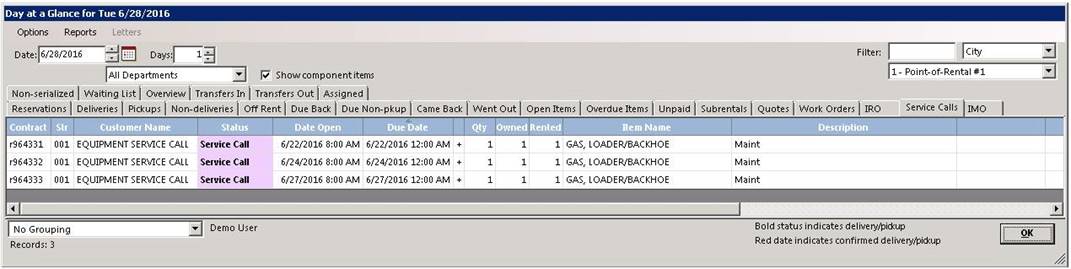
Overview: Allows you to create customer billing from a closed service call.
1. You will need to close the service contract, in order to bill the customer.
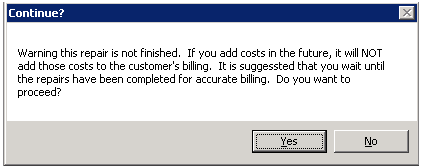
* Note – It is preferred that you only bill a closed service contract, as there may be charges not yet inputted into the contract. If you select create customer billing with the contract in a open status, you will receive the following message.
2. You can either right click on the service contract from Day at a Glance or Go To Counter System>Close Contract and enter the service call contract number.

* Note - Once the service contract is closed the status will change from open to repaired. The service call will disappear from Day at a Glance.
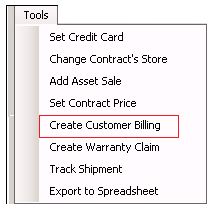
3. From within the close contract, go to Tools>Create Customer Billing and select the customer.
4. The Customer will be added to the new sales contract. You must have sales item miscellaneous record created as MS-1 Miscellaneous Sale Item as part of your inventory. (For multiple locations us MS-2, MS-3) This will be added to the item Key on the billed contract with the item being sold.
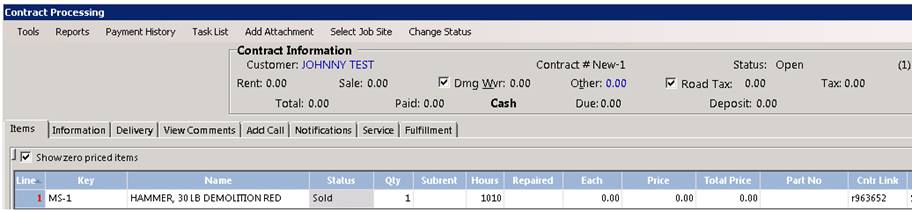
* Note – The sales contract has been created with Item Key as MS-1. Also under the Contract Link the service call number is shown.