This selection is used when rental and/or sales items are to be modified. From Program Menu, click on Counter System, Modify Contract
Program Menu>Counter System>Send Out Reservation
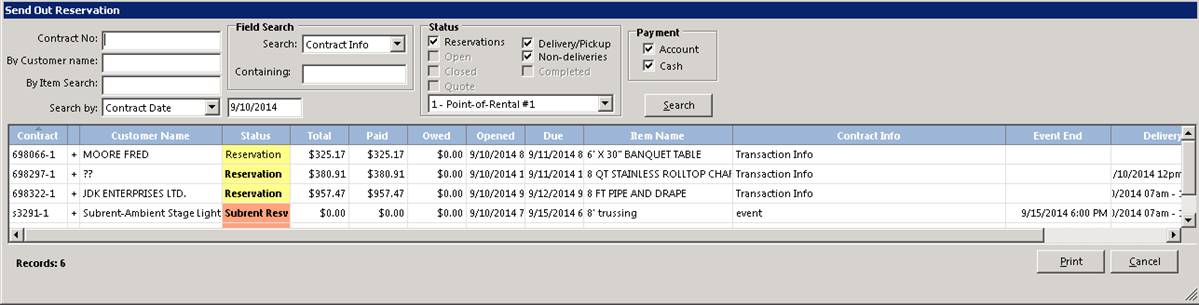
In the “Transaction Selection” screen you must enter the contract number or search for the contract by using any of the search options on the pull down menu accessed by a mouse click on the “search by” box. Under Field Search, you can search a particular field for a certain word or phrase anywhere within the field. If you push ENTER the program will return to the COUNTER SYSTEM MAIN MENU.
You can select any of the contracts by clicking on the contract number. If you click on the plus sign, then all the items on that contract will be displayed. If your click on the customer name, the customer record will be displayed. Any amounts that are due from an Account customer will displayed in green. Any amounts that are due on a closed contract will be displayed in red. By clicking the “Show All Items” all the items on the contract will be displayed rather than just the first item on the contract. .
Store to Display: This option allows the selection of only contracts for the desired store.
Status: These check boxes allow the selection of only contracts that have a certain status. Note: Some statuses will be unavailable when performing certain functions such as Closed status will be unavailable when closing contracts.
Use Historical: This option will show completed contracts that have been moved to history that match the selection criteria.
Payment: These check boxes allow the selection of only contracts for Account and/or Cash customers.
Search: This button will perform the search of all contracts that meet the selection criteria based on the boxes checked.
Note: Any amounts that are due from an Account customer will be displayed in green. Any amounts that are due on a closed contract for a cash customer will be displayed in red. For any contract marked for delivery or pickup, the contract status will be bold.
1. The contract will be shown on the screen. Next you will be asked if the reservation is going out (Yes or No). You must type “YES” or “NO” to continue. If you type “NO” you will be returned to the Main Menu. If you type yes, then those items will be taken out of inventory and the contract status will be changed to open
2. Refer to OPEN contract starting with step 5 for the remaining steps.
***Special Note***
Reservations can be sent out advance of the actual delivery day. While we DO NOT recommend this we understand it is sometimes necessary. Below are the rules and how the Rental Out Date and the Delivery Date are affected.
When the Delivery Date & Date Out/Event Date is in the current day, no date/time changes are made.
When the Date Out is tomorrow and your default rate code is Party Formula, no date/time change is made.
When the Date Out is tomorrow and it is after 3pm today and your default rate code is NOT Party Formula, no date/time change is made.
If a date out change is made, it will next check the delivery date.
If the Delivery Date is tomorrow and it is after 3pm today and your default rate code is Party Formula, no delivery date/time change is made.
If the Delivery Date is tomorrow and your default rate code is NOT Party Formula the delivery date/time will be updated.
From Day at a Glance
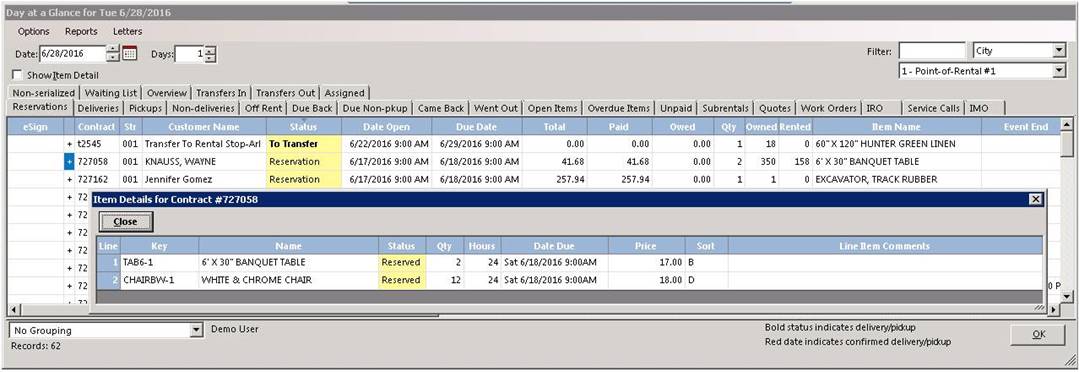
From Counter System, select Day at a Glance. Select the Reservation tab. You can either right click your mouse and select Send out Reservations or you can select any of the contract by clicking on the contract number.

If you click on the plus sign, then all the items on that contract will be displayed.
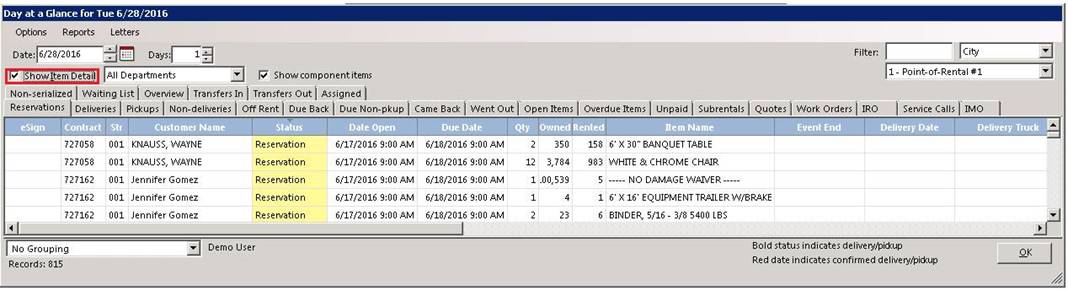
Or you can select the Show Item Detail
Any amounts that are due from an Account customer will displayed in green.
Any amounts that are due on a closed contract for a cash customer will be displayed in red.
Any contracts marked for delivery or pick up, the contract status will be in bold
Right clicking with your mouse and choosing send out reservation will open the contract. You will receive a message asking if the customer data is ok. If you select yes it will continue to the contract. If you select no, it will let you correct the information.
Once you enter the contract you will receive a message Do you want the due back time to recalculate. If you type yes, then those items will be recalculated based on the due time. If you select no, it will not recalculate the time.
The status on the line item will change from reservation (yellow) to out (green). The inventory items will be taken out of inventory.
If any money is due on the contract you can proceed to the payment screen to take a payment