
If you have a Domain Server: Open Administrative Tools > Active Directory Users and Computers and find the appropriate user account. Note: You can search for a user account by right-clicking on the domain name in the left pane and clicking “Find…”
Next, right-click on the user account and click “Reset Password…”

You will be prompted with a Reset Password window. Type the new password in twice and un-check “User must change password at next logon”.

If you have a workgroup server: Open Administrative Tools > Computer Management. Expand Local Users and Groups on the left pane and select the Users folder. Right-click the appropriate user account in the right-pane and click “Set Password…”
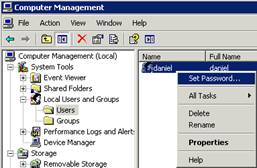
Click Proceed on the warning prompt and type the new password in twice. Click the OK button to finish.