
This functions allows you to write a new quote contract. This function can be used to quote process to a customer an then if they want a print out or to make the reservation, simply select the customer. To write a Quote Contract, do the following steps:
Program Menu>Counter System>New Contracts>Quote Contract
1. Enter the Date out.
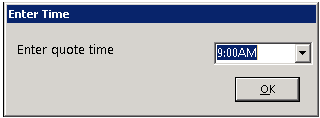
2. Enter quote time.
3. Select the item to enter on to your quote contract.

4. Select the rate (daily, weekly or monthly).

5.Enter the quantity of the inventory item.

6. If you want to save this quote or print it, click n Select Customer at the top of the screen.

7. Select the desired customer or add a new customer.

Tools
Set Credit Card – Stores customer credit card
Change Contract Store – This allows you to change the contract to another store location. (ex. Store one contract going to a store two contract) at the end of the contract number will change from a -1 to a -2. Note: If changing contract from one store location to another. You will be prompted a message to verify the sales tax jurisdiction for the new store location.
Add Asset Sale– This allows you to add an asset sale to the quote contract. You will be asked to enter (qty, description), the item will show on the contract with a status Sold Asset and will not take the item out of you inventory until the quote is sent out.
Set Event End Date - This allows you to change the starting and ending date of a reservation Note: (You will have to click the modify contract) in order to use this feature.
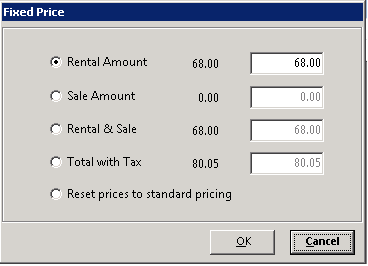
Set Contract Price - This will allow you to change either the (rental, sale, rental & sale, total with tax. You also have the ability to reset the contract price to its original pricing.
Track Shipments - This allows you to track shipments to include (Ship Date, Return Date, Delivery Truck, Pick Up Truck).
Export to Spreadsheet - This allows you to export the reservation/contract to an excel spreadsheet
Reports
Transaction Edit - Allows you to see each transaction that was made on a contract by the (date, store, action, before, new, operator, Amt Changed, Paid, Payment Meth, Deposit).
Print Instructions - Allows you to print any instructions in relation to the reservation or contract.
Posted to Total Report - This report be based on the Accounting Method that you have set in Parameters. It will break down the contact you are viewing by rental, sale, damage waiver, asset sale, as well as other amounts and tax collected.

Payment History
Payment History – Will display the all payments made of the reservation or contract. It will list the (date/time, store, Operator, Pay Type, Cash, Credit Card, Debit Card, Other, Ref No and Authorization Number).
Show Renal/Sale Payments – Will display all payments made to the rental/sale of the contract.
Show Deposit Payments – Will display all payments made to the deposit field.
Export– Will allow you to export the payment history to an excel spreadsheet.
Print– Will allow you to print out the payment history for the reservation or contract you are inquiring.
Task List
Create Reminder - The Point-of-Rental System offers useful management tools such as task management, aiding in reminders, and customer relationship management. These can be a fundamental benefit in strengthening your company’s employee management and customer relationship efforts. These tools are especially useful for instances where: someone needs to remember something, remember to do something, or to remind someone else to do something. There is nothing worse than making a promise to a customer and not following through.
Task Assigned – You have the ability to create a new task, new reminder or print task. You can create a inter-office task for employees or you self to follow up on, this will list the detail (description, store, assigned by, assigned to, last operator, date created, date due, date cmpltd, last number and frequency). You will be able to have notification sent to you when the task has been completed. You also have the ability to create a Personal Task, Store & Group Task and tasks assigned by you.