

METROLOGIC OR HONEYWELL
**Metrologic was sold to Honeywell**
Model: MS9540 or MK9540-32A38
If you purchased your barcode gun from Point-of-Rental, please refer to PORhelp.com to download the .pdf for programming.
The guide on the website is designed to program the barcode gun to select an item and select the quantity “1” using the search field.
Barcode Scans
Program barcode gun to select an item and select the quantity or prompt for a quantity in one scan using the Search Field:
{barcode scan}~#{qty}{enter} to select a set quantity for each scan (typically 1)
{barcode scan}~#{enter} to prompt the user to enter a quantity for each scan
WASP WWS500i Barcode Gun Set Up Procedures
The Wasp WWS500i is a wireless Bluetooth barcode gun. It comes with a USB Bluetooth adapter that plugs into a workstation that is used to communicate with the wireless barcode gun. First you must configure the Bluetooth barcode gun to communicate with the PC. Afterwards, by default, you can immediately begin using it to scan barcodes. Out of the box the barcode gun will scan barcodes and ask for you to enter the quantity. If you want it to automatically add every barcode item with a quantity of 1 you can follow the instructions at the end of the article.
1. Plug in the Bluetooth dongle
2. Go to Control Panel, then go to Devices and Printers
3. Click add Device
a. Select Wasp Barcode and click Next
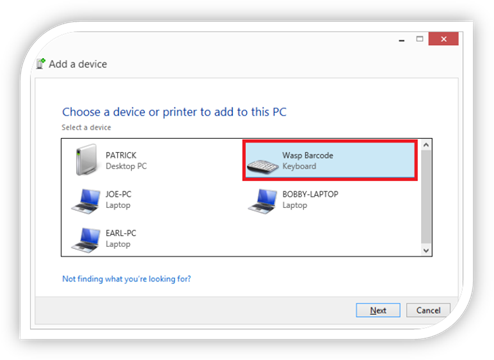
b. A Screen with numbers shows up and you will do is in your Quick Start Guide Book you will go to page 7 and Scan the start pin and scan the appropriate numbers and when you get done you will scan Enter Barcode.
**NOTE: You have a limited time before it times out.
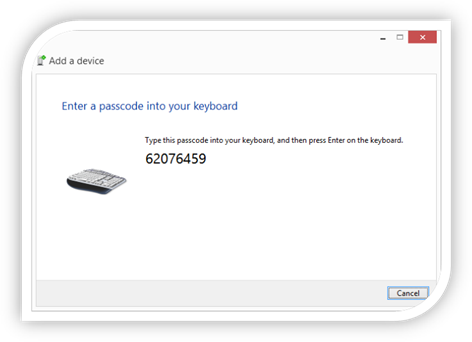
c. After you have done that it will install and be paired to that computer. If you need to move the scanner to another computer you will have to redo the pairing of the devices.
4. By default when scanning a barcode it will ask for a quantity if you want it to automatically add one to the contract then go back to the inventory selection screen.
Programming the Barcode Gun to enter a Quantity (OPTIONAL)
1. In this selection we will be using the Programming Guide Pages 12, 34, 36, 37.
a. Page 12 scan the Postamble Code
b. Page 36 scan the “~” Code
c. Page 34 scan the “#” Code
d. Page 34 scan the “1” Code
e. Page 12 scan the Postamble Code
Note: To reset to factory default turn to page 7 of the Wasp WWS500i programming guide and scan the Factory Default barcode. This will configure the barcode scanner to scan the label and ask you the quantity.
Barcode Scans
To program the Barcode gun to enter a quantity of 1:
Scan the “Postamble” code, Scan the “~” code, Scan the “ #” code, Scan the “Enter” code
Scan the “Postamble” code
To program the Barcode Gun to let you enter a quantity:
Scan the “Postamble” code, Scan the “~”, Scan the “#”, Scan the “Postamble” Code
If the scan does not work and you have to start over, you can clear the “Pre/Postamble” code and start over