The Pickup Report produces a report of pickup contracts. The report will include all contracts, reservation or open, that are to be picked up for whatever time period you choose.
You will see the following menu:
Beginning Date – This is the beginning date of the report.
Ending Date – This is the ending date of the report.
Change – This button allows you to change the beginning and ending date of the report.
Grouping – The report can be grouped by contract or by item. When grouped by contract, each contract with the associated items and information is printed together. When grouped by item, each type of item is grouped together. For example all of the 8 foot tables will print together. Note: When grouping by item, the Delivery & Pickup information as well as the customer address will not be printed.
Sort Order – The report can be sorted by Delivery Confirmed, Delivery Truck, by Store, or Delivery Zip code.
Pickup Confirmed: Sort by delivery confirmed, confirmed deliveries first followed by non-confirmed. The confirmed and the non-confirmed section will then be sorted by date.
Pickup Truck: Sort by delivery truck entered on the contract under Truck Assignment.
By Store: Each store’s contract will be printed in store order.
Delivery Address Zip: The report will be sorted first by the Zip code of the contract and then by date.
Print Component Items – If this option is checked, the component items will be printed on the report. A component item has the “Don’t print on contract” option checked in the item record. Usually this would be items such as poles and stakes.
Store to report – This option is only valid if you are running the multi-store version. If you uncheck this box, you can enter the store number to report.
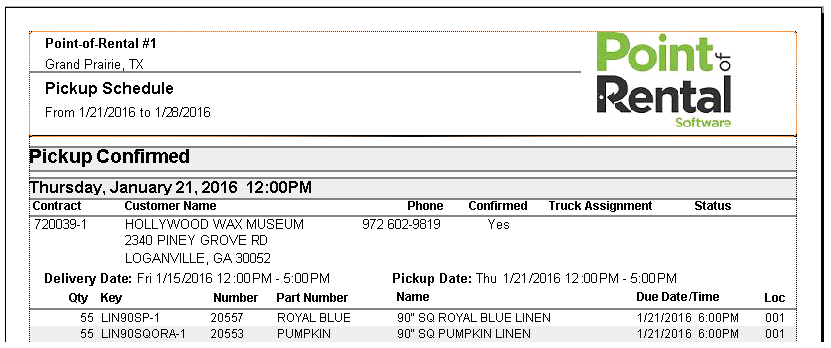
The report grouped by customer will look similar to the following report:
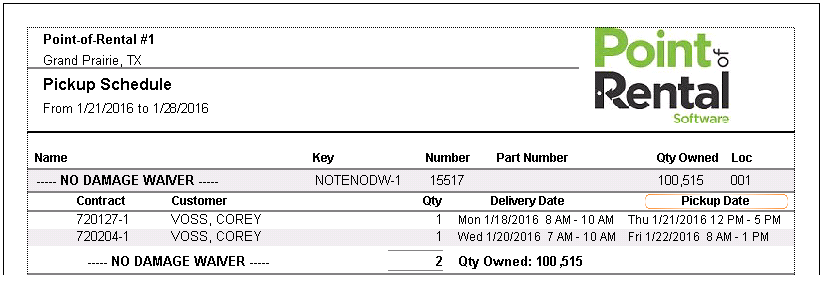
The report grouped by item will look similar to the following:
Subrental Report
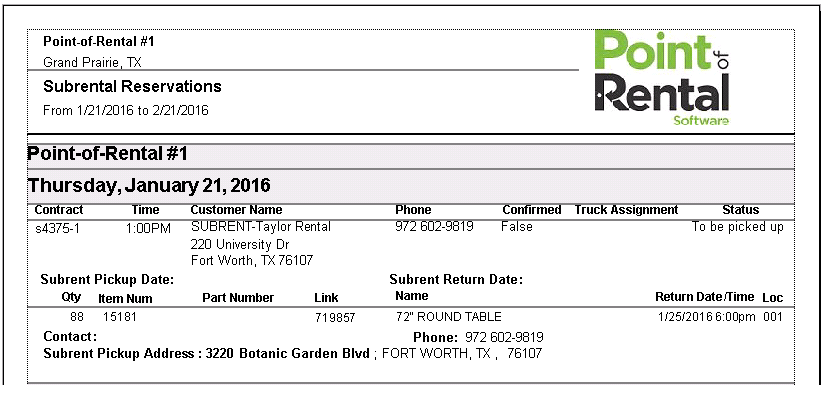
The Subrental Report shows all of the items that need are scheduled to be subrented from another rental store. You must first create the Subrental contracts under Counter System; Tools; Contracts; Subrental.
The report will look similar to the following report.