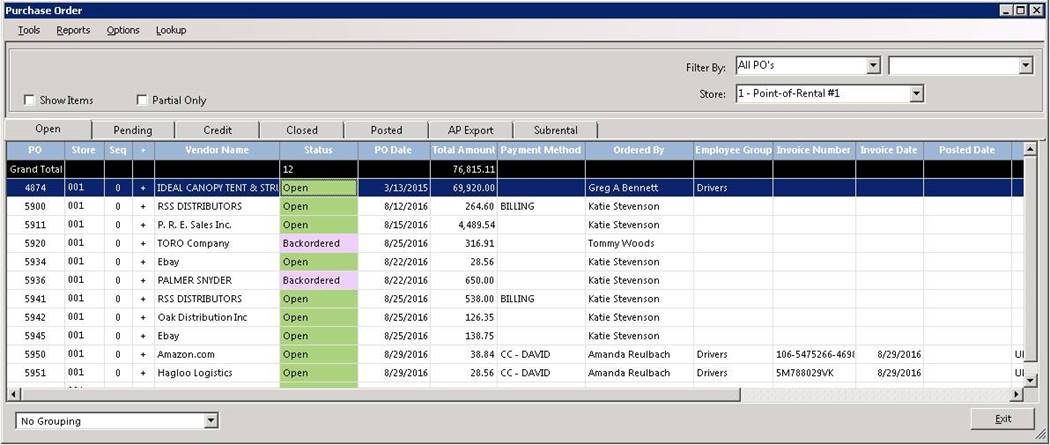
When selecting Purchase Order from the Program Menu, it will automatically put you in the display screen. You will have the ability to see all your (Open, Pending, Credit, Closed, Posted, AP Export, Sub Rental) purchase orders at a glance. If you want to modify a contract, click on the contract to modify.
You can select the desired purchase order by clicking on the purchase order line. If you click on the plus sign, all of the items on the purchase order will be displayed.
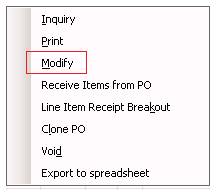
You will have the option to (Inquiry, Print, Modify, Receive Items from PO, Line Item Breakout, Clone, Void or Export to spreadsheet).
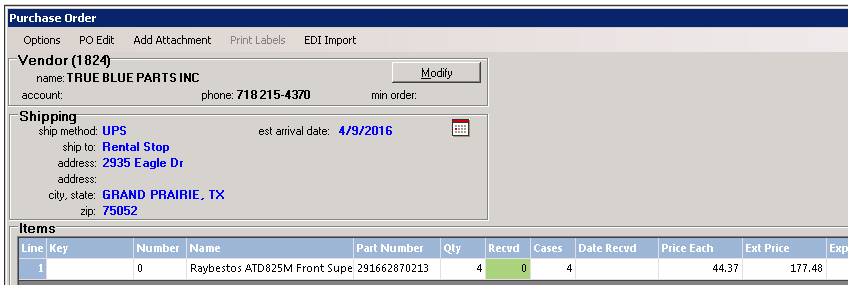
Once the purchase order screen is displayed, you can then modify any of the fields.
Open - this tab option will display all of the open purchase orders.
Pending - this tab options will display all pending purchase orders. (Not finished)
Credit - this tab option will display all credit purchase orders.
Closed - this tab option will display all of the closed purchase orders.
Posted - this tab option will display all of the closed purchase orders that have been posted to Accounts Payable.
AP Export - Allows you to export purchase orders to an iif file to be imported into your accounting software. An import file will be created with the name of AP yyyy.mm.dd.batch#.iif for QuickBooks and yyyy.mm.dd batch#.Ap.csv for comma delimited. The file will be stored in the export directory defined under Program Menu: Configurations:Account Numbers.
Subrental Pending - this option will display all of the pending Subrental purchase orders.
Inquire - This option allows you to look at all purchase orders for a specific purchase order
Print - This option allows you to print a particular purchase order.
Modify - This option allow as you to make changes to a specific purchase order.
Receive Items from PO - This option will allow you to receive items in on a specific purchase order.
Clone PO - This option will allow you to make a copy of a specific purchase order.
Voided - This option will display all voiced purchase orders.
Export to Spreadsheet - Allows you to export purchase order to an excel spreadsheet