Overview: For users with their accounting software not installed on the same server as Point-of-Rental, to import the general ledger entry automatically generated at the end of the day, the QB folder needs to be mapped as a drive to the computer with the accounting software installed.
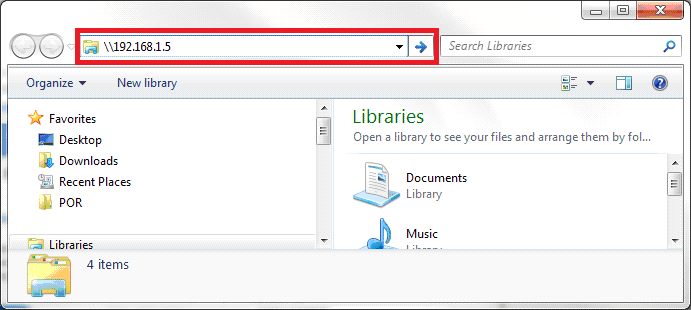
1. On the local side of the PC, open a windows explorer. In the address bar, type \\(server IP) Example:\\192.168.1.5
2. Enter a username and password to the server. This has to be an already existing user account. It is recommended to use an account that does not have a password that expires. Note: Remember to check the box to save credentials.
3. Several folders may appear. Look for the one named QB, if that folder does not appear, skip to the next section.
4. Right click on the QB folder and click map network drive.
5. Choose any available letter, ensure the box “Reconnect at login” is checked then click “Finish”.
6. The QB folder will now show up under Network Drives under My Computer.
If the QB folder does not show up
1. Log onto the console of the server as an admin account. Typically Administrator
2. Navigate to < driveletter>:\por>QB
3. Right click the QB folder and click properties
4. Click the sharing tab and click share.
5. It will bring up a list of users that can access the folder. Add the username used from Step 2 in the previous section. Give them permission to read/write.
6. Repeat Step 3 from the previous section.