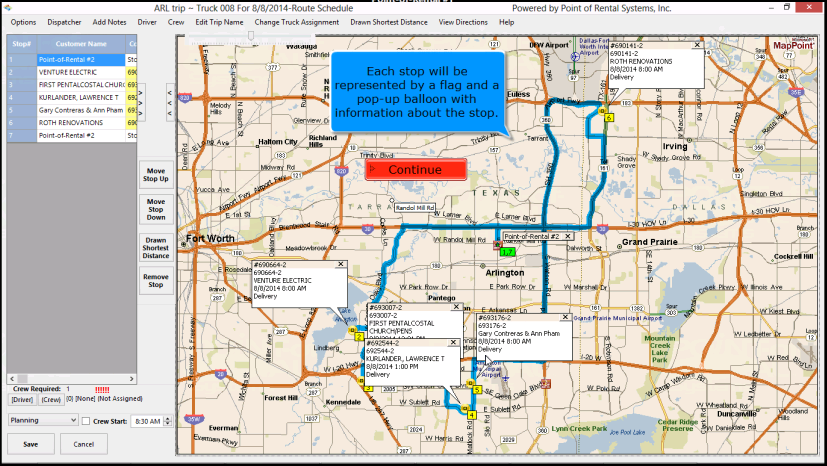
This allows you to verify a customers address or have the dispatch center verify multiple addresses. It will also allow dispatcher to optimize the route (Sequentially, Chronologically or by distance).
Map It
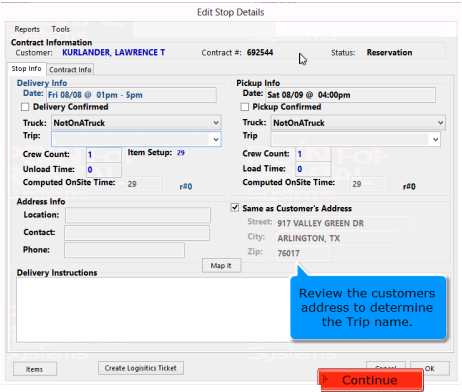
To review a individuals address, click on the Trip and verify the customers address for this Trip.
If the Trip name cannot be determined from the address, use the Map It button to see the stop location on a map.
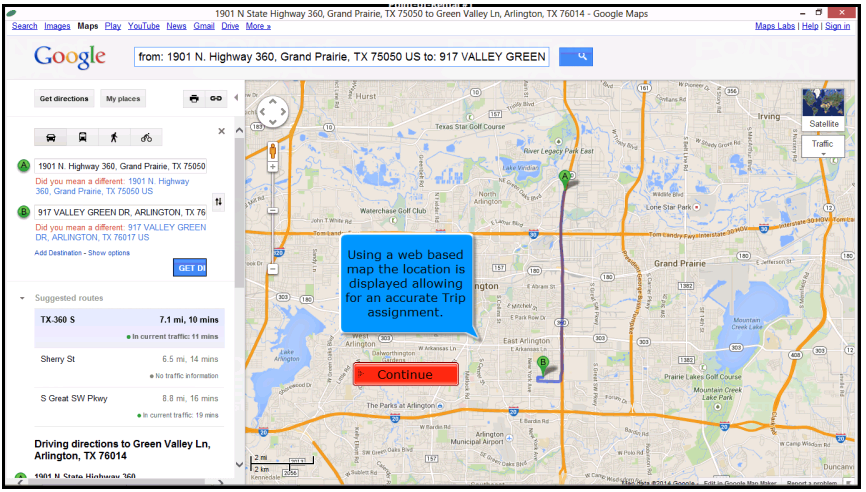
b. Using a web based map the location is displayed allowing for an accurate Trip assignment.
c. When finished click the red X in top right corner of the map.
Map and Grid
When all your trips have been assigned and the geo location have been entered on a truck. You can set the routes for each vehicle. Right click on the assigned truck displaying the Route View.
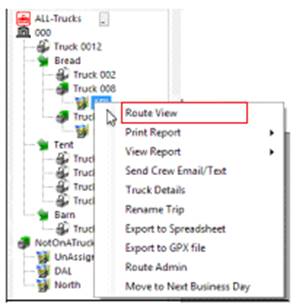
2. Select Route View – This will start the routing process

3. Route Start/End – Multi store systems, you can set the starting and end locations Usually your store location.
4. Crew – Click the button to assign the crew and their start time.
5. Route Departure Time – Allows you to either select Dynamically or Manual Departure Time
a. Dynamically – Will compute the departure time automatically
b. Manually – Selecting this option allows you to manually select the Departure time. Select the time to the right.
Map and Grid
Will show all routes scheduled for a vehicle on the map. By choosing the map and grid feature, it will add functionality like validating stop address, verifying on-time statues and the ability to visually check the routing.
After specifying the departure time, click the Map and Grid button. The dispatch center will validate each address.
* Note – Each stop will be represented by a flag and a pop up balloon with information about the stop.