This report shows the amount and percentage markup for sell items. It is useful to find problems in pricing where the purchase price has increased but the sell price has not.
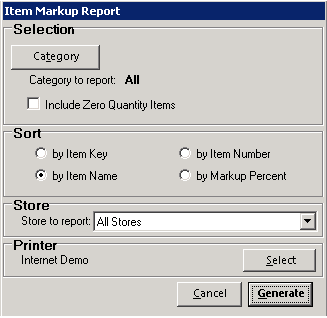
When this report is selected the following menu will be displayed:
Category – This button allows for a single category selection for the report.
Include Zero Quantity Items – With this box checked, items that you don’t currently have in stock will be displayed. With this box unchecked, only items that you currently have in stock will be displayed.
Sort – The report can be sorted by item key, item name, item number, or by the markup percent.
Store to Report – This pull down menu allows for a certain store to be reported. This option is only available to multi-store systems.
Printer Select – This button allows you to change the default printer for the report.
The report will look similar to the following report:

* Note: There are two icons in the upper right corner of the report. Once is an excel icon, it will show expanded information when exported to excel. The second is a ? icon, this is a link, taken you to Net Help documents.