
Overview: Selling gift certificates to a customer and redeeming the certificate at a later date. You can easily track gift certificates within Point-of-Rental and on your Profit and Loss Statement if desired. Gift certificates should be numbered/serialized so they can be tracked when redeemed.
Setup a category for Gift Certificates:
1. Program Menu - #9 Configuration>Item Configurations>Item Categories
2. Create a new category called Gift Certificates if one does not already exist
3. Enter your G/L # for Gift Certificates if you want to track on your P & L (generally a liability account)
Create a Gift Certificate Sales-Header:
1. Program Menu - #6 File Maintenance>Item File>Add new Item
2. Key = ‘GIFTCERT’
3. Name = ‘Gift Certificate’
4. Qty = 0
5. Item Type = ‘Sales-Header’
6. Category = ‘Gift Certificates’ (the category you created in the steps above)
7. Home Location & Current Location = ‘000’ – This allows any store to sell or redeem
8. Sell Price = 0.00 or the sales price of your gift card
9. Option Tab – Non-Taxable and Non-Discountable = ’Checked’
Creating gift certificate items without Purchase Orders. Manually create each item record by selecting the Header record and choosing Options – Create Serialized. Make sure the unit number in the key matches the number printed on the gift certificate.
*There are two Item Types you could use for the individual gift certificates. Choose the one that best fits you.
1. Sales-Item: Qty=0, Sell Price=50.00. If you choose to do pre-determined gift certificate amounts you can create unique item keys to help distinguish the gift certificate amounts. Example: GIFTCERT50 for $50 gift certificates or GIFTCERT100 for $100 gift certificates. Just make sure to match the sell price to the key.
2. Sales-Miscellaneous: Qty=0, Sell Price=0 For this type when adding the gift certificate you will have free range to type in the amount of the gift certificate.
All of the set up work for gift certificates is now complete.
Selling: When a customer wants to purchase a gift certificate write a contract for that item just like you would any other resale item. Make sure you select the serialized item and enter an amount of the gift certificate.
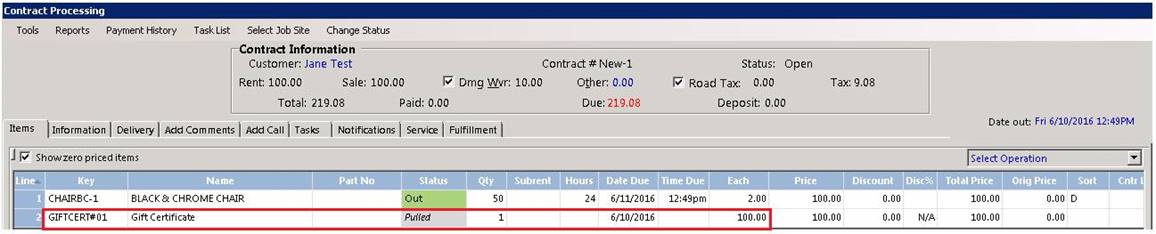
** Shortcut to creating the gift certificate items if you have Purchase Orders. Write a purchase order for the gift certificate header item. When you receive them make sure the unit number in the key matches the gift certificate number printed on the gift certificate. You will have to un-receive all of the items and then void the PO. This is simply a short-cut to quickly create many items and avoid manually creating the items.
Redeeming
1. From Inside the contract,

2. Select the Add Item Button
3. Check the Serialized Items box and the Zero Qty box, to make sure all serialized items are shown. Add the same serialized gift certificate to the contract

Click OK
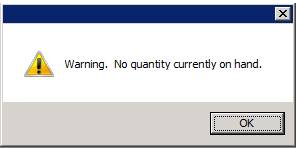
Enter N, this will change the qty to a negative number

Enter the negative quantity
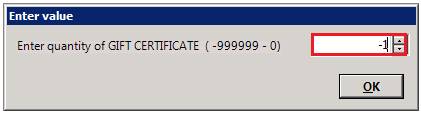
Enter the amount of the gift certificate in the each column. You will notice the value of the contract has been lowered by the amount of the gift certificate.

Accounting Entries: Assuming you setup your G/L accounts correctly in the Item Category, when a gift certificate is sold, the income will post to a liability account rather than an income account. When a gift certificate is redeemed, it will create a negative posting to the same liability account and income will post based on the items rented or purchased.