This option will create an import file for Accounts Payable. An import file will be created with the name of AP yyyy.mm.dd.batch#.iif for QuickBooks and yyyy.mm.dd batch#.Ap.csv for comma delimited. The file will be stored in the export directory defined under Program Menu>Configurations>Account Numbers.
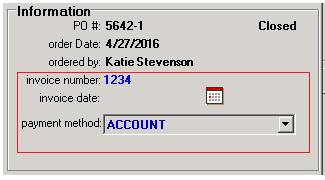
In order to export, you must have the invoice Number and Payment Method selected in the invoice. This is located in the upper right corner of the purchase order.
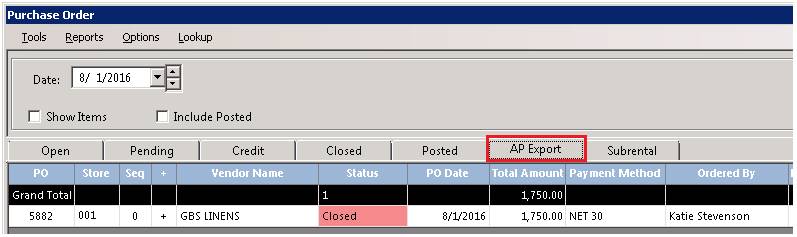
Next you will click apply and ok in the bottom right corner of the purchase order. This will move the purchase order to the AP Export tab in the display menu.
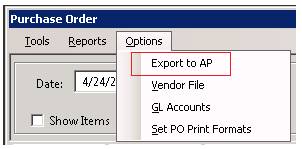
From the display screen, select Options>Export to AP
Once selected, you will have the option to choose the Format and Store location to report. Selecting the preview button, will allow you to view the purchase order prior to exporting to make sure you are exporting the correct ones.

** Note: You must have an invoice number and payment method set on the closed purchase order in order to export.
Beginning Date - This is the beginning Purchase Order date to include in the export.
Ending Date - This is the ending Purchase Order date to include in the export.
Export Format - This is the desired format to export.
Only include POs with Invoice Numbers - With this checked, only POs that have an invoice number defined will be included in the export.
Store to Report - If a particular store is chosen, the only POs written at that store will be included in the export.
Printer - This allows you to define what printer the Export Preview will print to.
Preview- This button will display a preview of all the POs that will export.
Export - This button will actually create the export file.
* Note: You must set the "Post to AP" option to true for any payment methods that you want to export to Accounts Payable. That setting is set under Program Menu>Configurations>PO Payment Methods