Overview: Sometimes (rarely, we hope) a customer will need to bring back an item because of a problem and exchange it for another. Instead of having to go through the trouble of removing the item off of the contract, then adding another item you can simply exchange the item in one step.
A standard exchange of a like serialized item is very straight forward; while modifying a contract, simply right-click the item and choose 'exchange item' from the pull-down list. Next, select the replacement item. What do you do when you do not have a replacement item to give to the customer? You could give them your competitors phone number or you could find a substitution within your fleet. To exchange similar items on a contract you must assign a group to all like items that are exchangeable.
Assigning a Group to Item Records
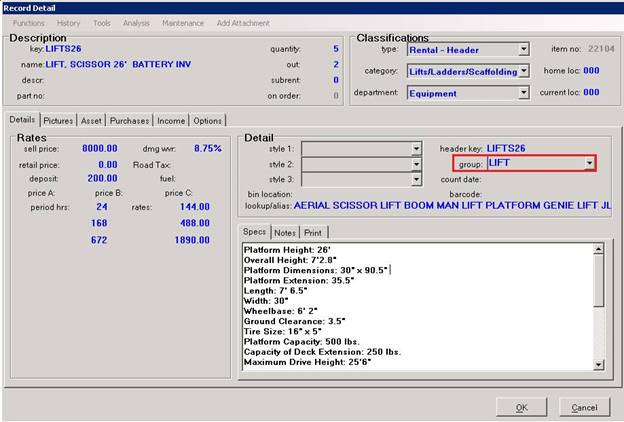
1. FromItem File in File Maintenance enter something in the Group field for an individual item. The example below shows the word LIFT was entered for a 26'scissor lift. The LIFT group has now been created; you now need to enter LIFTin the group field for all items that could be offered in an exchange.
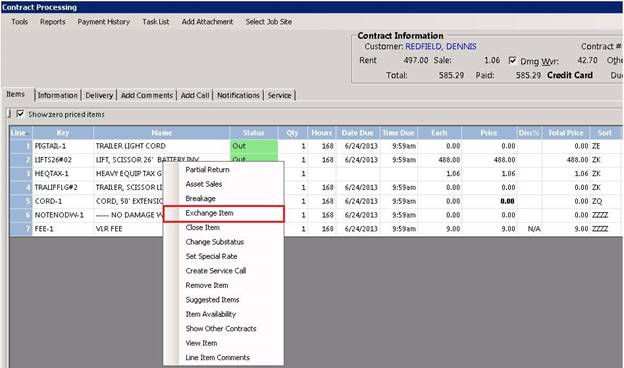
2. Once you have set up your group, you now have the opportunity to exchange any items in the group on a contract. To do that, modify the contract and right-click the item you are replacing and select Exchange Item.
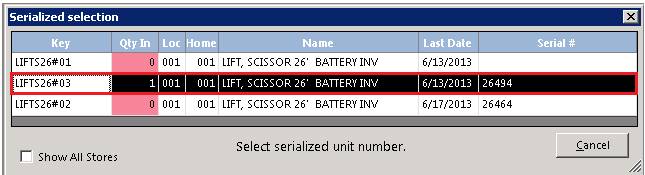
3. You will see a list of the serialized items to choose from. If you see none available, click the Cancel button.
4. You will then see the following message. Click Yes.

5. You will now see a list of all like items within the group. Click on the item you would like to use as a substitution.
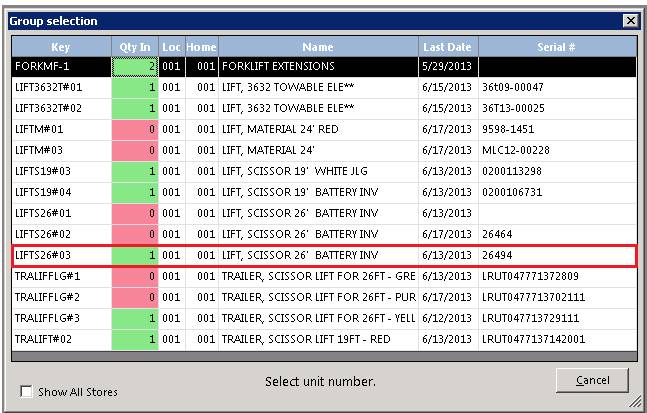
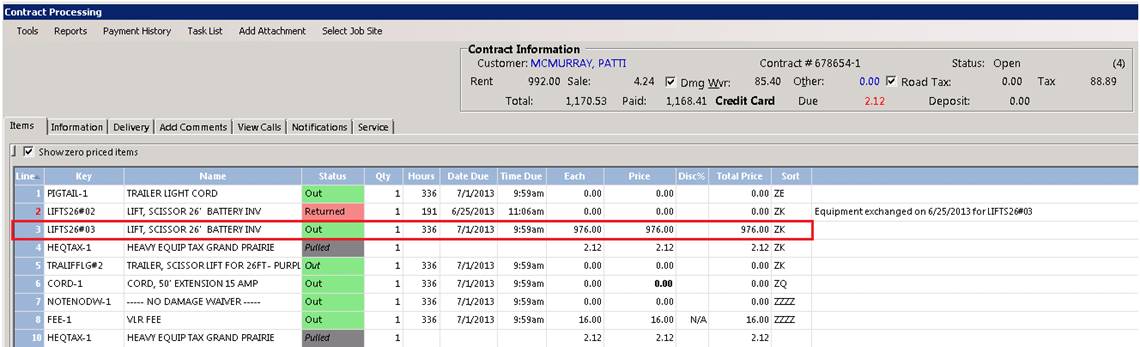
6. Generally,if the customer is returning the item because of a defect, you would want to answer Yes to the question. You will now see the original item shows Returned with no cost and the replacement is on the next line.