
Overview: Shadow copies are convenient backups of individual folders and files that can easily be restored to an earlier point by simply right-clicking on the folder in question and choosing the appropriate folder or file to restore. This article covers the procedures for enabling the automatic shadow copies feature.
• Browse Control Panel -> Administrative Tools -> Computer Management.
• Right-Click Shared Folders, click All Tasks and then click Configure Shadow Copies
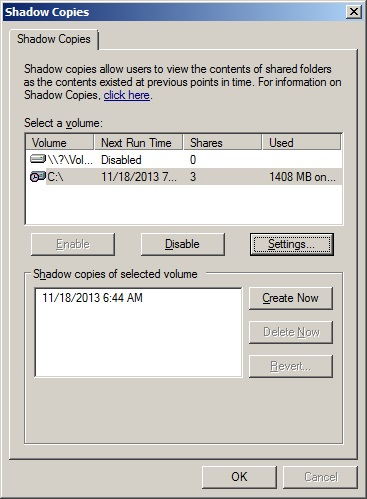
Select the volume that stores the Point-of-Rental Systems data.
• Click the Enable button. A shadow copy is created immediately
.

• Click the Settings button.
Your server will be automatically given a limit of space to use for shadow copies. You can change the limit based on how much data you have and how much un-used hard drive space you have.
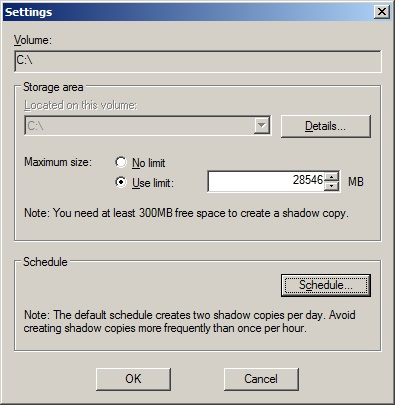
• Click the Schedule button.
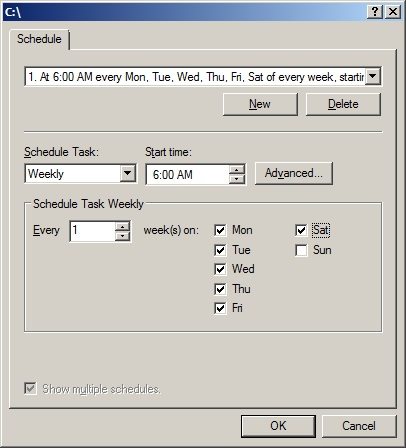
Set the schedule you wish for your shadow copies to run. We recommend it run a minimum of once per work day before the day starts. This way you have a shadow copy of data before it was changed that day.
• Click the OK button when done.
You can test to make sure the first shadow copy, that ran immediately, ran successfully by right-clicking a folder on the volume you selected for shadow copies to run on.

You should see a dialog box with at least one version of that folder with its date stamp listed. If you see this then you have successfully setup shadow copies.

Now you can double-click the folder and select individual folders and files to be restored.