
Overview: How to return items back to the manufacturer or distributor using the credit purchase order. Using this adjusts your inventory, gives correct Cost of Good Sold entries, and provides a tracking device for your accounts payable to be sure they get the credit from the vendor.
The Procedure:
1. From the Program Menu, go to # 4 Purchase Orders.
2. Choose “Open Credit PO”.
3. Select the Vendor and click OK.
4. Select the item you are returning by clicking on one of the four boxes in the lower left corner. You can click Items for Vendor to see a list of what you bought from them previously. Otherwise, you can click Inventory Item or Non-inventory item.
5. After selecting the item to be returned, you will be prompted to enter the quantity returned. You must enter a negative number; i.e. put the minus sign (-) in front.
6. Now enter the each price, not the total. If the vendor is charging a restocking fee, you need to lower the price accordingly. For example, if you paid $75 for an item and there is a 20% fee, enter the price as $60. If it is a flat cost, you can enter it in the Misc. field in the lower right corner.
7. Enter in the “Expense to”, the “G/L account” and “Line Comments” as applicable.
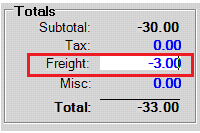
8. You can enter the shipping cost in the Freight field in the lower right corner. If the vendor is reimbursing you for the shipping fees, you can enter a negative number.
9. When you are finished, click OK.
10. Once you have returned the items to your vendor make sure you use the “Receive Items From PO” function to remove them from your inventory.