
* Note: This method should only be used if you are correcting a payment on the same day. It is not recommended using this option if you are trying to correct a payment from a different day.
Overview: There are many reasons why you would need to correct an account payment but they can be boiled down to two scenarios. First is where the payment itself is incorrect and needs to be voided. Second would be where the payment is correct but applied to the wrong invoice(s). In this case, the payment does not need to be corrected except to repost to the correct invoice(s).
Voiding a Payment
1. From the Program Menu select #3 Accounts Receivable then select 'Account Payments'.
2. Select the appropriate customer.
3. Select 'Correct Previous Payment'.
4. Next you will see a display listing all payments and contracts for this customer with the most recent at the top. Click one of the lines displaying the payment you want to void (there may be more than one line if multiple contracts were paid; it is only necessary to select one of the lines). You will see a message box asking to verify that is the correct payment to back out. Click OK.
*Note: The screenshot below shows what appears to be 4 payments; there are actually 2 payments. Each payment has its own unique reference number or check number and the grid shows each contract paid.
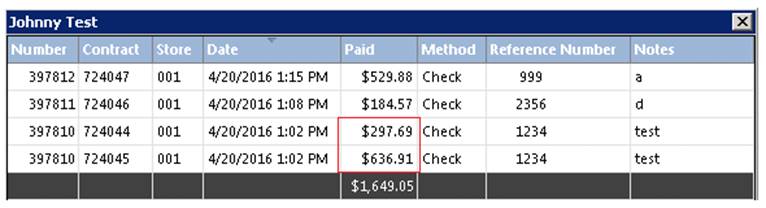
Once the correct invoice is selected, you will receive a message confirming you want to back out the payment. If multiple invoices, it will unpay all invoices paid the same check 1234.
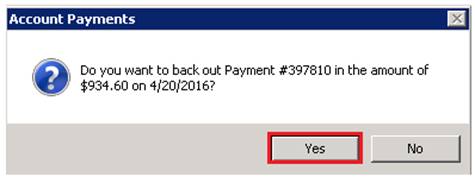
The contracts are now unpaid. You to make payment. Go to Accounts Receivable>Account Payments>Make Payment or Customer Dashboard>Tools>Make payment to pay contracts.
