
Overview: Save time and energy by sending letters or notifications to customers in mass rather than individually. Letters can be generated and delivered via email, fax, or printed and mailed.
*Mass Fax & Email Module required. Please contact our sales department for more information.
Example used: Reservation Reminder and Reservation Verify
Reservation Verify is designed for your final confirmation 2-5 days in advance of the Delivery or Event Date of an order and would be sent via email to your customer.
You will follow the same procedure for both Reservation Reminder and Reservation Verify.
1. First you will need to set up an email letter for your Reservation Reminder. Go to Configuration on the Program Menu (#9). Then go to Store Configurations>Edit System Letters>Transaction Letters>Reservation Reminder (or Verify). It will bring up Notepad and you can edit the letter.
2. You must also have an email address or fax number in the customer records if you want those customers to receive their letters by those methods. Otherwise they will all print.
3. Go to the reservation tab in Day at A Glance. Select the specific date or dates that you would like to send a letter to. At the top of the screen under letters, select the appropriate option from the tab you are on.

4. Once you click a letter it will bring up a box with a default letter already pre typed. Here you can change what you want. You can also choose the order of sending options that Point-of-Rental will use. If you select email in the field “first” POR will look for an email address in the email field of the customer record. If it finds one it will email the letter even if the customer has a fax number as well. If you select fax as option number one it will fax instead. It is ideal to leave print as the last option simply because faxing and emailing is automatic.

5. As soon as you click OK Point-of-Rental will do the rest and send the messages. To do Reservation Verify you follow the same procedure except you choose the Reservation Verify letter instead of Reminder.
Sending Letters From More than the Reservation Tab.
1. In the first part of the How To you edited the actual reservation Verify and Reservation Reminder letters. You can have an infinite amount of letters in Configuration>Store Configuration>Email Letters.
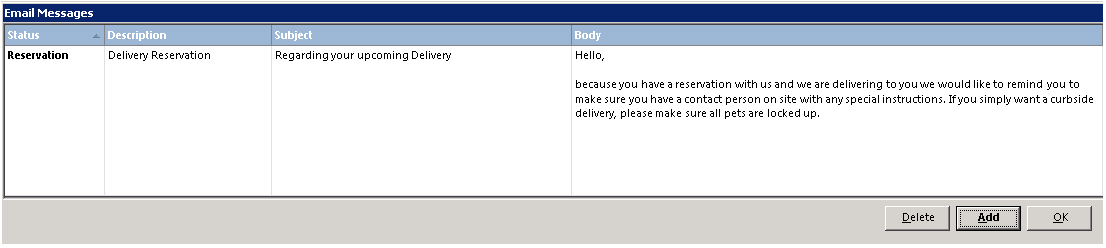
2. Click, “Add” and you can create a new letter for whatever category you want. In the example below, a letter is being created for the Delivery tab of Day at a Glance.

3. Go to the Delivery tab and follow the same steps of clicking on Letters at the top of the screen and reservation reminder. This will populate the email field with that letter, but you can then click on Standard Messages, select Reservation and (in this example) Delivery Reservation. This will populate the window with text more specific to a delivery reservation.


Other Tabs With Letter Functionality
•Pickups – Pickup Reminder
•Non-Deliveries – Reservation Verify, Reservation Reminder
•Due Back – Reminder to Return, Demand to Return
•Due Non-Pkup – Reminder to Return, Demand to Return
•Open Items - Reminder to Return, Demand to Return
•Overdue Items - Reminder to Return, Demand to Return
•Unpaid – Payment Reminder
•Quotes – Follow Up
•Waiting List – Reminder
One more example outside of reservations is for the Open Items tab. A letter reminding customers of upcoming inclement weather could be sent letting customers know that their rentals could possibly be damaged and they may want to move them to a sheltered area.