
Allows you to view/hide or move columns and how they are viewed on your contract. You will have the ability to change based on individual user, store or entire company.
You now have the ability to change how the columns are positioned on a new, closed or modified contract.
Right click with your mouse on the blue header bar above the first line item on the contract.

Under Column Visible will display a list of options you can show on your contracts.
Column Visible - By checking the box, this will show as a column on your contract. Un-checking the box will remove the column from your contract.
Moving Up/Down – Click on a item and select the up or down button will allow you to reposition the columns and the order they will appear on your contract.
Hide – Will automatically check or uncheck the item you highlighted. Check means it will show as a column on your contract. Un-check will remove the column.
Reset – Will reset the setting to the system default.
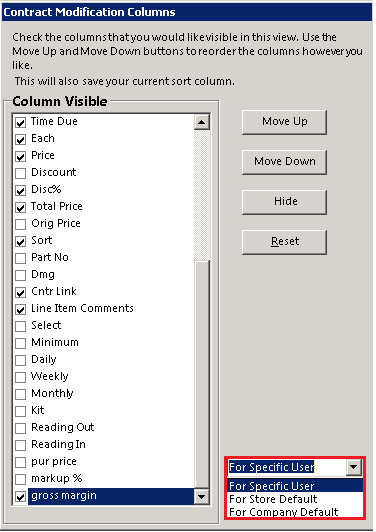
From the drop down menu, you can save your settings based on an individual user, by store default or company default. This will save your current sort column.