Below are the steps for going live with the module:
•Install the PositekRFID module –need a TeamViewer session and password to the Point-of-Rental server
•Mark items as BulkSerializedMethod = 2 (RFID) – below demonstrates how to mark items
§ If (Customer) already has a list of items to be marked as tagged, can perform a mass update to assist with the initial implementation
•Upload tagged items into PositekRFID (Point-of-Renal will provide a shortcut for this)
•Once items are tagged in Point-of-Rental, switch the module to live status
Below is how the module works on a daily basis
•When a reservation with tagged items falls within a window of being sent out . . .
§ If the customer is not already uploaded into PositekRFID, they will be uploaded
§ If any tagged items are not already uploaded into PositekRFID, they will be uploaded
§ The contract will be uploaded into PositekRFID
§ The window is a time frame that Flexx Productions specifies – default is 14 days from when the contract is being sent out
•Each time a reservation with tagged items is created, the module checks to see if it falls within the window
§ If the reservation falls within the window, it is uploaded
•Each night a scheduled task looks for previously created reservations that now fall within the window
§ If a previously created reservation falls within the window, it is uploaded as in step 1
§ In addition, all tagged items are updated each night
•If (Customer) adds a tagged item after the initial install, (Customer) may choose to upload it immediately using the shortcut or wait for the nightly upload to catch it (normally the evening after it is marked as tagged in Point-of-Rental)
1. Configuring tagged items in Point-of-Rental for PositekRFID upload
•Open the Item in Item File maintenance from the File Menu
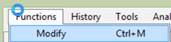
•Click the Functions and Modify menu options
•Go to the Options tab and find the bulk item check box in the far right-hand column
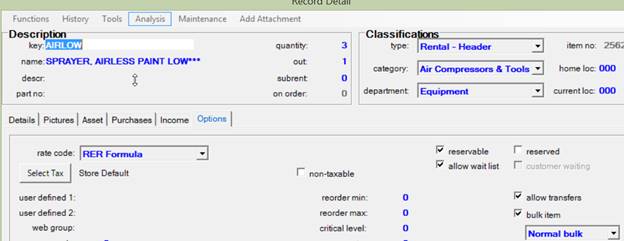
•Change the option to RFID Bulk
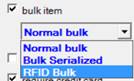
•Click the OK button and the item will be marked at tagged
•Double-click the Positek upload shortcut on your desktop to upload the tagged item(s) into the Positek system