Overview: If you and your staff have the fuel capacity of every one of your inventory items off the top of your heads then there is no need to continue reading. Still reading? Point-of-Rental has the ability to keep track of the fuel capacity of every piece of equipment in your yard and takes the responsibility of making counter staff computes how much fuel is remaining in a rental return.
1. Your fuel item needs to have an item key very short; DIES for diesel and GAS for Gasoline. * Note: Must be Alpha letters. This is so there is enough room for it in the fuel field of the item record.
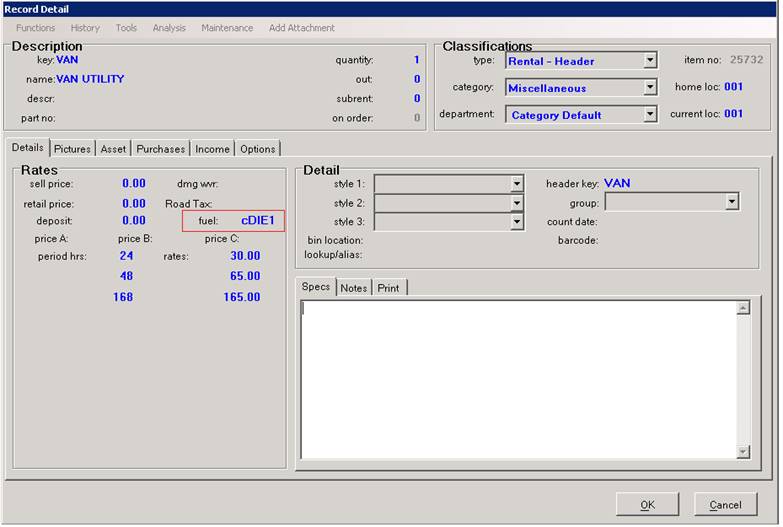
2. In the Fuel field of the item header and item record,
a. Enter a small “c” your fuel item key and a “#T” the T is for tank. “c” is for close of contract #T will display tank in fractions you can select (see below)
b. Enter a small “c” your fuel item key and a 1. to enter your own number for gallons of fuel..
a1. Enter a capital “C” your fuel item key and a “#T” the T is for tank. “C” is for close of contract #T will display screen for fuel. Select fuel and add number of gallons. (see below)
b1. Enter a capital “C” your fuel item key and a 1. to enter your own number for gallons of fuel..
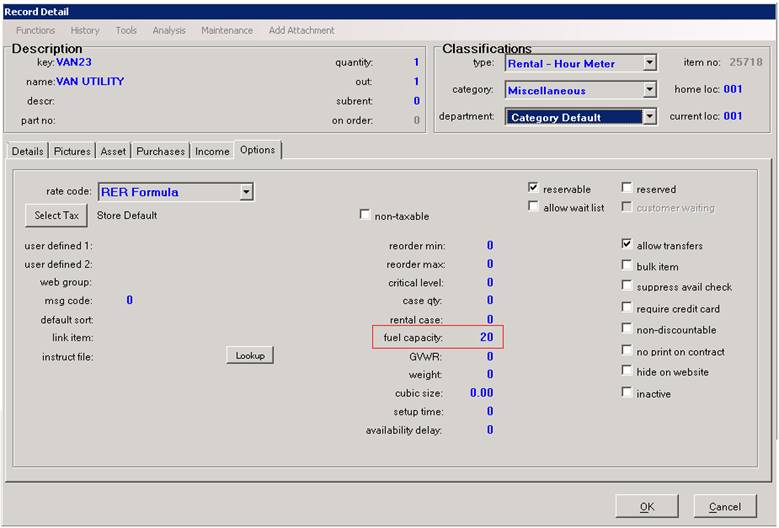
3. Enter the fuel capacity of the item you are configuring. It is in the options tab of the item record.
Important: Fuel capacity needs to be in the serialized item records, NOT the header. The fuel field information needs to be in the Header, NOT the serialized item records. Whatever information is entered into the fuel field of the header is copied to the serialized item as soon as it is added to a rental contract. Fuel capacity, however does not copy over in order for serialized items under the same header to have different fuel tank sizes.
FUEL CAPACITY
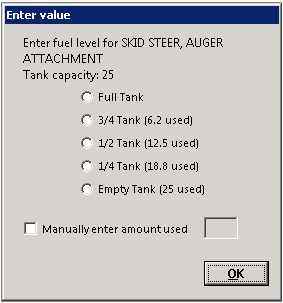
Small “c” in fuel field:
cDIE#T will display following when closing contract.
From the closing of a contract if cDIE#T was entered in the fuel record in file maintenance, you will be prompted with the level of the fuel tank. Whichever bubble you select will add the appropriate amount of fuel to the contract.
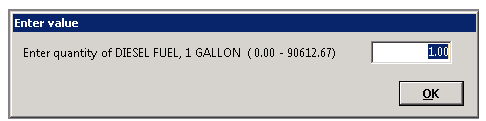
cDIE1 will display the following:
From closing of a contract if cDIE1 was entered in the fuel record in file maintenance, will allow you to enter you own fuel gallons.
Capital “C” in fuel field:
CDIE#T will display following when closing contract.
From the closing of a contract if CDIE#T was entered in the fuel record in file maintenance, you will be prompted to select a fuel type (f you have both diesel and gas listed), select the type of fuel and it will add the to the contract.

CDIE1 will display the following:
From closing of a contract if CDIE1 was entered in the fuel record in the fuel field in file maintenance, you will receive a prompt asking you if you want to add diesel fuel to the contract.
