
SalesForceSync has 3 components to be configured
•SalesForce instance – customer must provide the following
•
o SalesForce username
o SalesForce password
•
o SalesForce security token (directions for obtaining the token here).
o External KEYs must be added to the SalesForce tables below
§ Account – CNUM – text 6 characters
§ Contact – Auth – number 6 characters
§ Task – CallLog – number 6 characters
•Point-of-Rental instance
o SalesForce works with either Elite or Expert versions
o Elite version has tables and views in POR SQL database
§ Install files located at C:\POR\SQLNP\Setup
§ POR_SalesForceSync.sql creates tables and views
§ POR_SFSyncUser.sql creates Jitterbit/salesforce user and provides permissions to tables and views
o Expert version has tables and views in c:\POR\SFPORSync\PORSFSync.mdb database
§ Run “C:\POR\Programs\SalesForceSync.exe DBEDIT” command line to install c:\POR\SFPORSync\PORSFSync.mdb database
•
o Jitterbit instance
§ 3rd party software that links Point-of-Rental to Salesforce
§ Software must be installed on customer server and Jitterbit jobs prepared before sync can occur
•
o
§ Add customer Salesforce ID, password and security token to My Salesforce Orgs.
•
o
§ Add the source and target connections
•Source
o PORSQL for Elite
§ SQL Native Client
§ Server Name: SQL Server instance
§ Database Name: POR
§ Login: SFSyncUSer
§ Password: S913sF0rc3$2016
o PORSFsync for Expert
§ Microsoft Access Driver
§ Construct connection string manually in options
§ Driver={Microsoft Access Driver (*.mdb)};Dbq=C:\POR\SFPORsync\PORSFsync.mdb
•Source contracts.csv for contract pdf uploads
o Copy C:\POR\Contracts\contracts.csv file to customer server
o Name: Contracts.csv
o Type: Local File
o Folder: C:\POR\Contracts
o Get Files: Contracts.csv
•Target – PORSQL for Elite, PORSFsync for Expert
o PORSQL for Elite
§ SQL Native Client
§ Server Name: SQL Server instance
§ Database Name: POR
§ Login: SFSyncUSer
§ Password: S913sF0rc3$2016
o PORSFsync for Expert
§ Microsoft Access Driver
§ Construct connection string manually in options
§ Driver={Microsoft Access Driver (*.mdb)};Dbq=C:\POR\SFPORsync\PORSFsync.mdb
1. Build Jitterbit jobs (same process works for queries, upserts, inserts and deletes)
o
§ Sync job documentation located at C:\POR\SFPORSync\queries\JitterbitQueries.xlsx
2. Click New Query – defaults to Salesforce login – click Next

3. Select the Salesforce Object – click Next

4. Enter the query and test – click Next
5. Select the database to pass the results to
1.

6. Download and select the table (can be table or view/query)
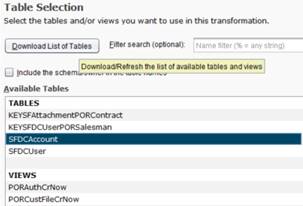
7. Create the key – click Finish

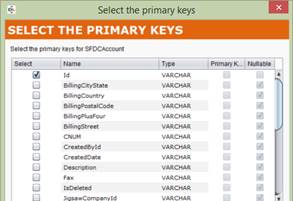
8. Map the fields to the table – maps located in C:\POR\SFPORSync\maps
9. Finish and name the query
o
§ Queries
1.
•PORAcctKey – Salesforce Account ID to update new Point-of-Rental customer
•PORAuthKey – Salesforce Contact ID to update new Point-of-Rental authorized user
•PORContractKEY – Salesforce Attachment ID to update new Point-of-Rental contract
•PORTaskKEy – Salesforce Task ID to update new Point-of-Rental call log
•SFAcct – Salesforce new customers and customer updates
•SFAuth – Salesforce new contacts and contact updates
•SFTask – Salesforce new tasks
•
o
§ Upserts
1.
•PORAcctCr – Point-of-Rental new customers
•PORAcctMod – Point-of-Rental customer updates
•PORAuth – Point-of-Rental new authorized users
•PORTask – Point-of-Rental call logs
•SFAcctKey – Point-of-Rental CNUM to update new Salesforce account
•SFAuthKey – Point-of-Rental Auth to update new Salesforce contact
•SFTaskKey – Point-of-Rental CallLog to update new Salesforce task
•
o
§ Inserts
1.
•PORInsertContract
•
o
§ Deletes
1.
•PORDeleteContract
1. Customer initial contact message
Tasks to be completed are:
1. Day 1 (requires TeamViewer connection to Point-of-Rental server)
2.
a. Install sync interface
b. A J Vel to reboot server (after hours and all users logged out of the system)
3. Day 2 and following (requires TeamViewer connection to Point-of-Rental server)
4.
a. Data prep (1 – 3 days)
§ Review and prepare customer and contact information to be synced between the two systems
§ Upload Point-of-Rental customer/accounts into SalesForce
§ Upload any other optional Point-of-Rental domains into SalesForce
2.
b. Interface configuration (1 – 3 days)
§ Build and Configure sync routines
§ Test syncs, debug and correct as needed
§ Begin scheduled syncs
Can you please answer the following questions that will aid in configuring the Point-of-Rental SalesForceSync interface and send the response back to me?
3. Do the Point-of-Rental salesperson accounts already exist in SalesForce as salespersons?
4.
a. Customers are loaded into SalesForce based upon existing SalesForce/Point-of-Rental salesperson(s) (i.e. – if only one salesperson is in SalesForce, all Point-of-Rental customers will be linked to that SalesForce salesperson
b. If needed, please add SalesForce salespersons to match the Point-of-Rental salespersons
c. How many salespersons will be involved?
5. Are any Point-of-Rental accounts already in SalesForce? If not, what Point-of-Rental accounts do you wish to be uploaded into SalesForce:
6.
a. All active customers?
b. All customers?
c. Customers active within the past ## years?
7. The sync can be one way or two way
8.
a. from Point-of-Rental to SalesForce only
b. from SalesForce to Point-of-Rental only
c. from Point-of-Rental to SalesForce and from SalesForce to Point-of-Rental
9. What areas of Point-of-Rental and SalesForce do you wish to be synced?
10.
a. Point-of-Rental Customer/SalesForce Account (default and required for all other syncs)
§ What is the approximate customer count?
§ Will the sync be one way or two-way?
6.
b. Point-of-Rental Authorized/SalesForce Contact (optional – contacts for accounts in SalesForce will be synced)
§ What is the approximate contact count?
§ Will the sync be one way or two-way?
6.
c. Point-of-Rental Call Log/SalesForce Task (optional – Call Logs for accounts in SalesForce will be synced – historical tasks/call logs will not be synced)
§ Will the sync be one way or two-way?
3.
d. Point-of-Rental Contract PDFs into SalesForce Account (optional – Contracts for accounts in SalesForce will be synced – most recent modification visible – historical PDFs will not be uploaded)
7. Access parameters
8.
a. I will need a TeamViewer ID and password to the Point-of-Rental server to begin the configuration process.
b. SalesForce username
c. SalesForce password
d. SalesForce security token (directions for obtaining the token here).
e. I will also add Point-of-Rental external KEYs to the SalesForce Account, Contact and Task tables. I will attempt to do this from the A J Vel server. If the server security level prevents this, I will need to login from the Point-of-Rental office and SalesForce will send a notification for approval.