
Assigned a wrong customer to a contract, or need to change the customers name once the contract has been created. Now, you can easily change a customer’s name on a contract without having to void or rewrite the entire contract.
From program menu>Counter System>Modify Contract – enter the contract name or number that you would like to change.
* Note: Contract needs to be unpaid, in order to change name.
You can change the name on any contract that was assigned a contract number and has not been paid.
Right click on the customers name, will open a dialog box, select change customer. You will be prompted a message “Do you want to change the customer on this contract.”

Select “Yes” and the Customer Selection screen will appear, enter the customer you would like to be entered on the contract.
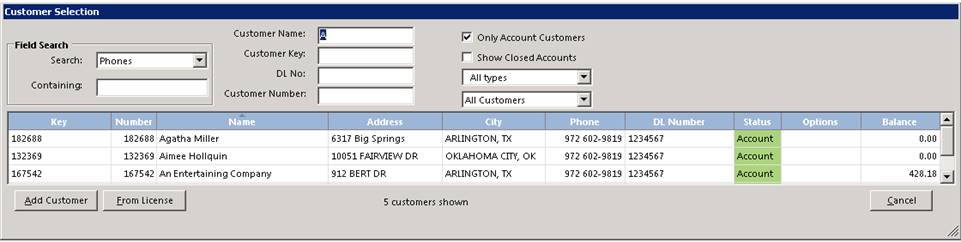
If this is the correct customer, select “Yes”, the new customer will be added to the contract.
* Note: If old customer was non taxable and the new customer is taxable. You will be prompted a message that the contract has been changed to taxable.
Contracts with a paid amount on them.
You would need to modify the contract, go to the payment screen. Enter a negative dollar amount (amount paid) in the rental/sale and select “CASH”. Modify the contract and follow same procedures as above. Once the customers name has been changed, you can go to the payment screen and reapply the payment as a positive amount by “CASH” back to the contract