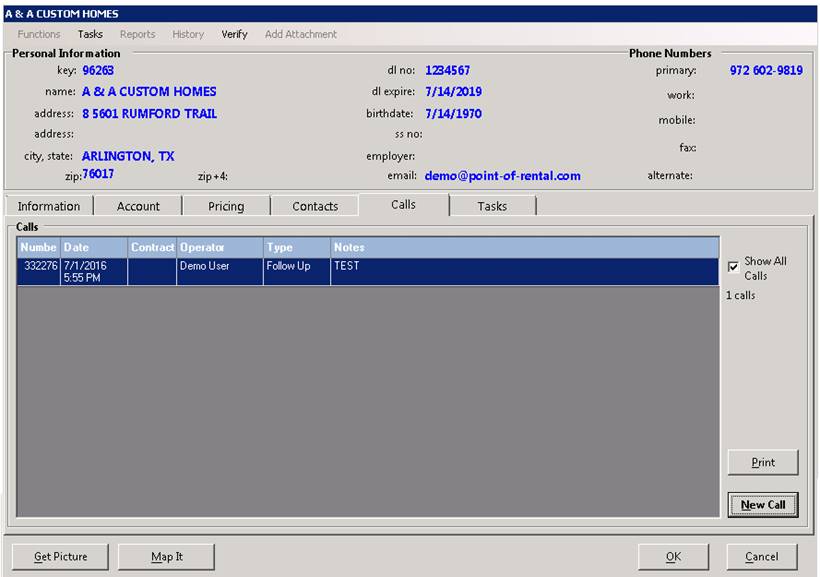
Left clicking on the Calls tab will display fields on that tab.
The Call Log is used to document all calls between you and the customer. Anytime you have contact with the customer, a call log should be entered so that everyone has access to that information.
Show All Calls – With this box checked, all calls for this customer will be shown. With this unchecked, only calls that don’t have a particular contract number will be shown.
Print – This button will print all of the calls to the printer.
New Call – This button allows you to enter new calls for this customer. Calls can also be entered for a particular contract on the contract-processing screen under Counter System.
Options Menu:
Modify – By clicking this, you will be allowed to modify the fields within the customer record.
Delete – By clicking this, you will delete the customer record from your database. Note: It is not recommended to delete any customers from your database unless the record was never used. By deleting a customer you also delete the historical income and detail associated with that customer.
Merge into different customer – By clicking this, you will merge all of the historical and active information from the currently displayed customer into another customer record. The current customer will be deleted. Once you select this option and confirm that you want to proceed, you must select the new customer. This option must be enabled through Program Menu; Security; Data File Security.
Contract Questions – This option allows you to setup templates of questions that will be asked each time a contract is written for this customer. You can define up to 16 questions. If you would like any of the questions to be required, then you will need to start the question with an asterisk “*”. The question and the answers typed in will be automatically entered into the contract comments section.
Enter Password Override – This option allows you to enter a password to allow modification of fields that are restricted via password.
Email Customer – This option will send an email to this customer. You must have an email address in the customer’s record. In addition, this terminal will need an email program installed and configured such as Microsoft Outlook Express.
Store Credit Card – This option allows you to store a default credit card number with this customer. Whatever credit card number entered here will always be the default credit card number to use when paying a contract. The field can be used in conjunction with the “Don’t use history for credit card number” field. If this field is checked, credit card numbers used on old contracts will not be displayed. If you also have a credit card number stored on the customer record, then that store number will automatically be used when paying a contract with credit card.
Edit Job Site Info – This option allows you to add or modify Job Sites/Venue for this customer. See 6.8 Job Site/Venue for specifics in adding new job sites and venues.