
Overview: Writing-off bad debt is not something anyone enjoys, but it is necessary to clean up your A/R periodically (at a minimum, once per year). There are two preferred methods for writing-off bad debt; the first will reduce sales tax and the second will not. You will need to decide the appropriate method for the state you pay sales tax in. Ask your accountant! Both methods allow you to reverse the write off so a future payment could be taken. Make certain that you mark the customer as 'Undesirable'.
Method 1 : Write-Off Reducing Sales Tax
This method does not allow for tracking of Bad Debt on your G/L. It simply reduces income and sales tax accordingly through the contract.
1. From the Counter System Menu, choose Customer Dashboard
2. Select the customer
3. Right click the contract you wish to write-off and choose 'Write Off Contract' (must be closed)
4. You will be prompted to confirm that you really want to write-off the contract

5. Enter your password and press <enter>
Back at the Customer Balance screen you will see that the contract now has a zero balance.

To reverse the write-off:
1. Modify the contract.

2. From the Tools Menu in the top left corner choose 'Set Contract Price'.
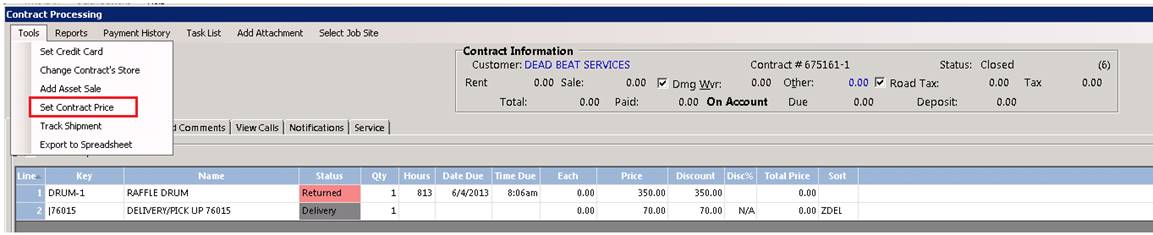
3. Select 'Reset prices to standard pricing'

4. Press the OK button.
This will set the contract back to the original pricing allowing for you to take payment. If you have sent the debt to a collection agency and they have sent you a partial payment, instead of choosing 'Reset prices' select 'Total with Tax' and enter the amount you have received. Now you can post the payment to the contract as you normally would.
Method 2: Write-Off Not Reducing Sales Tax
This method allows for tracking of Bad Debt in your G/L through the disbursement item is generally posted to an income account called Bad Debt Write Off in your G/L. This method does not affect sales tax.
1. From the Program Menu choose #3 Accounting
2. Select Account Payments
3. Select the customer
4. Choose Make A Payment
5. From the Payment Screen take a payment for the amount you are writing off
6. Select a payment method of Credit Memo and click OK
7. Is payment amount correct? Enter Yes
8. Select the Bad Debt Write Off disbursement item (you may need to create this Disbursement Item. See the Disbursements How To Guide for help)
9. Enter any comments you may have and press OK
10. Do you want to automatically apply this payment
•Note – if there is more than one invoice to apply, answer no and manually apply payment. If you answer yes, payments will be applied to the oldest invoice first.
11. Now you can pay the appropriate contracts as if you were taking a regular payment
12. Once all contracts have been paid the Funds Remaining at the bottom of the screen should be zero
13. Press OK to finish
To reverse the write-off:
1. From the Program Menu choose #3 Accounting
2. Select Account Payments
3. Select the customer
4. Choose Make A Payment
5. From the Payment Screen refund (-) Payment Amount for the amount of the returned check.
6. Select a payment method of Credit Memo and click OK.
7. Is the payment correct? Enter Yes.
8. Select the Bad Debt Write Off disbursement item.
9. Enter any comments you may have and press OK
10. Apply exsiting credits?
•Note – If there is more then one payment to apply, answer no and manually apply payment. If you answer yes, payments will be applied to the the oldest invoice first.
11. Now you can un-pay the appropriate contracts by entering a negative number in the Paying field
12. If you do not see your contract, it may have already gone to history. Simply click the Historical Button at the bottom of the payment screen and choose the contract
13. Once all contracts have been unpaid the Funds Remaining at the bottom of the screen should be zero
14. Press OK to finish.
This will un-pay the contract allowing for you to take payment. If you have sent the debt to a collection agency and they have sent you a partial payment, un-pay the contract by that amount only. Now you can post the payment to the account as you normally would.