


Overview: The Point-of-Rental’s background can now be changed to your company logo or to a different color.
To change the background go to the Program Menu->System Configurations->Parameters->Background Color.
Choose from standard colors or select Custom Color or Custom Image** to change the background.
Standard Colors:
Example of Standard Colors - You will have seven standard colors to choose from ( Royal Blue, Olive, Black, White, Grey, Yellow, Plum)
Royal Blue Olive Black
Custom Colors:
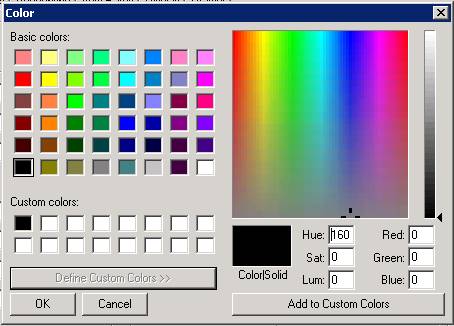
Allows you to choose from the Basic color scheme or create custom colors by selecting the Define Custom Colors button. Move the mouse over the color patterns to the left to select your color. This will be added to the custom color boxes

Custom Image
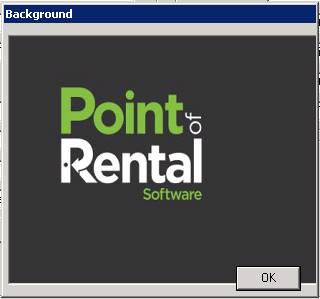
**Note: Once Custom Image has been chosen, a Background button will appear, where the image can be place in, by right clicking and pasting.

You can right click and use the click and paste option to insert your custom logo. Once done click OK.
Log out of Point of Rental and get back in. The background will update to color/image that was selected