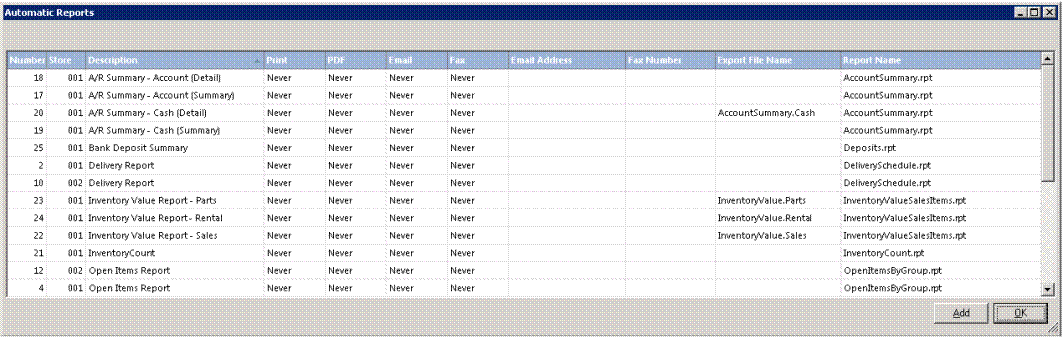
How to get there: Program Menu > Configurations > Reports and Notifications > Automatic Reports
In addition to the preset End of Day Reports, you can select any report to print on your selected intervals. The program comes with additional reports listed below the preset reports, but reports can be added, copied or deleted by right-clicking in the list of reports and then left-clicking on the appropriate selection.
By selecting one of the reports in the list you will get the following menu:

Test Report – You can click on this option to view the report on the screen
Reload Params – Reconfigures the report parameter.
REPORTS:
Description – This is the name of the report.
Store – Location that the report is generated for.
File Name – This is the name of the file in Crystal Reports.
Custom – If you have created this report in Crystal Reports then you would check this box.
Print – Select how often the report should print. Your choices are Never; Daily; Weekly; Monthly; Quarterly and Yearly.
Printer – Select a default printer where this will print out.
PDF Save – Select how often the report should be saved to a PDF file. Your choices are Never; Daily; Weekly; Monthly; Quarterly and Yearly.
PDF File – You can leave this field blank in most cases; the file will save in your [x]:\por\End of Period\ folder. You can define the save path and the file type by including the file name with and appropriate extension.
Examples
Pdf, csv, xls, htm, xml, doc, rtf, rpt, tab, txt, iff ( Google an extension for more information on the file type)
Filename (with no extension will default to pdf)
Filename.pdf (forces the file type to save as)
[x]:\my
documents\pdf files\filename.pdf (when defining a path you must also define the
filename and extension)
*Email – Select how often the report should be emailed. Your choices are Never; Daily; Weekly; Monthly; Quarterly and Yearly
*Email Address – Enter the email address where you want the report emailed.
*Fax – Select how often the report should be faxed. Your choices are Never; Daily; Weekly; Monthly; Quarterly and Yearly.
*Fax Number – Enter the fax number where you want the report faxed.
* The email and Fax options are only available if you have purchased the Mass Fax/Email Module.
DETAILS
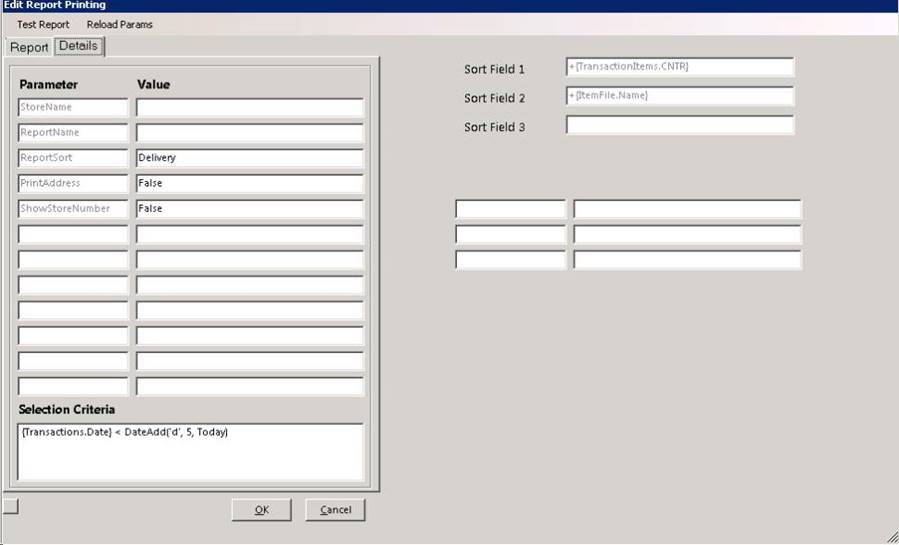
* Note: You can expand the box, this will give you three move field options by holding down you mouse over the bottom right corner of the box and dragging it
Parameter – This is a fixed value determined by the report selected
Value – The desired value of the parameter may be entered here.
(The following dynamic values can be used when a date of batch number is expected)
1. Today ( Selects current date)
2. Today-7 (Selects a date 7 days before today)
3. Today+21 (Selects a date 21 days from today)
4. DayBatch (Selects current batch)
5. DayBatch-1 (Selects 1 batch before the current batch)
6. BegMonthBatch (Selects the first batch for the current month)
Selection Criteria – This will be the formula used in Crystal Reports to create this report.
Sort Field 1, 2, and 3 – The report will first sort by this option. The entry is fixed and determined by the report selected.
Sort Field 2 – The report will sort by this field 2nd. The entry is fixed and determined by the report selected.
Sort Field 3 – The report will sort by this field 3rd. The entry is fixed and determined by the report selected.
Selection Criteria – This will be the formula used in Crystal Reports to create this report. Listed below are some examples of criteria that could be used.
1. BegMonthBatch - returns the first batch number of the current month (utilized for month to date or end of month accounting reports
a.{TotalsContractsAccrual.Batch} >= BegMonthBatch (month to date
DayBatch - returns today's batch number
b. {TotalsContractsAccrual.Batch} = DayBatch (current batch
CurrentDate - returns today’s date
2. {Transactions.Date} > DateAdd('d',-6,CurrentDate) (selects a date 6 days before today through today
{Transactions.Date}
= CurrentDate (selects today)
{Transactions.Date} <= CurrentDate
(selects today or earlier)
Saving a report as a .csv
In the PDF save area, put the name of the report followed by a .csv.txt. This formats it correctly so it can be imported to an accounting program