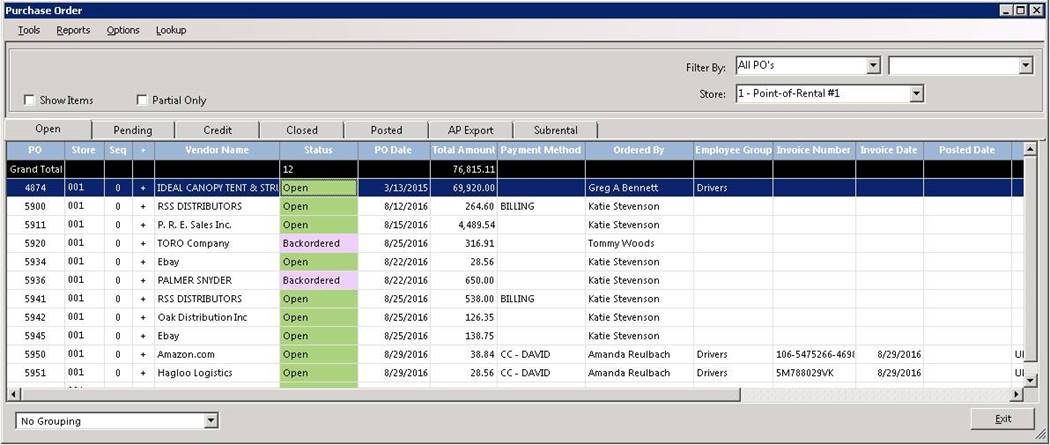
All Pending POs have to be approved before they become an actual PO. There are several reasons why a PO would be pending. One reason is that the person writing the PO does not have PO Approval authority. Another reason is the PO exceeded the maximum allowed for that operator and would need to be approved by someone with a higher amount. A Pending PO can also be written from an Internal Repair Order or a Customer's Work Order for items that are short,,by right clicking on the item and then pending POs, the item will be added to that PO. If the vendor has no pending POs, then a new pending PO will be created.
Program Menu>Purchase Order
Once you select purchase order, you will by default be in the open screen, select the Pending Tab, this will display all of the PO's that need to be approved.
Select the appropriate purchase order, you will be given the option to (Inquire, Print, Modify, Approve PO, Clone, Void, Export to Spreadsheet). Select Approve Purchase Order.
* Note: If the Approve Purchase Order is grayed out, then you are not authorized to approve pending purchase orders. Only individuals with proper security authorized to approve pending purchase orders will have access.
Once the Approve Purchase Orders have been selected, then your purchase order will be displayed. You will be able to uncheck the Pending in the upper right corner of the purchase order.

You will be prompted, "Are you ready to submit this Purchase Order?" Select "Yes". The status will change from Pending to Open in the top right hand corner of the Purchase Order Screen.

Click apply and ok, this will submit the purchase order and move the purchase order from the pending tab to the open tab, in the main display screen.