How to get there: Program Menu>Configurations>Accounting Configurations>Tax Tables
You can break down your overall Tiered Tax by different jurisdictions and track each type of jurisdiction from Sale Tax Report.
Note: The total of each
jurisdiction must equal the total amount of the Tiered Tax per
column.
Ex.
If the Tier Rental tax is 8.25%, then the total tax percentage of all tax
jurisdictions entered must equal 8.25%
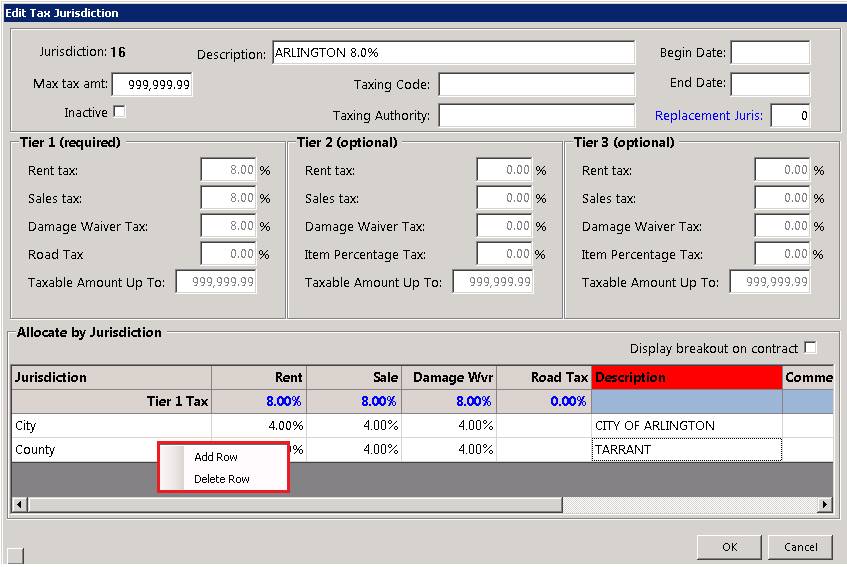
To add an additional Jurisdiction right click with your mouse, select add row, a new line will appear in the Jurisdiction box.
Enter the
name of your new jurisdiction; TheTier 1 Tax box will turn red. Enter the
percentage amount for the jurisdiction.
Once you have added all your
jurisdiction.The total percentage for each jurisdiction should equal the total
tiered 1 tax for that column. When completed the Tier 1 tax will turn go from
red to blue.You will do the same for the Sales, Damage Waiver and Road
Tax.
•NOTE: You will not be able to proceed, any further if the new tax jurisdictions, do not equal the total of our Tier 1 tax. In the description field, enter a name for the jurisdiction. If you entered city as the jurisdiction, the description might say Arlington 4%. Entering something in the description field will show jurisdiction breakdown on the contract.
Allocate by Jurisdiction
Jurisdiction: Allows you to specify a tax percentage to a specific jurisdiction.
Description: The type of jurisdiction being assigned. (sales tax, city tax).
GL Account Number: Allows you to define the tax liability for each tax jurisdiction. If you don't define a GL Account number, the posting will continue to go to your general tax liability account.
Display breakdown on contract – Checking this box will also show breakdown of
jurisdiction on the contract.
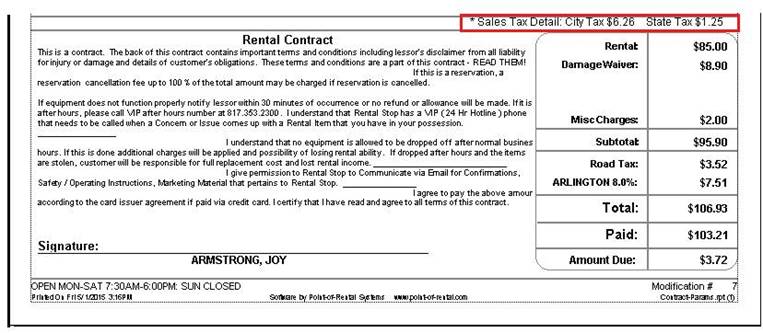
Viewed on Contract
When Display breakdown on contract, box has been selected in the appropriate tax jurisdiction. The breakdown will show above theRental Amount on the contract.