
Adjusting a local PC’s resolution can make Remote Desktop icons and programs larger or smaller to accommodate user visual preferences. This article explains the best ways of achieving the best resolution for you and things to avoid.
Best Option: Start by adjusting the local PC’s resolution. You might start at scaling either at the lowest resolution or the highest depending on what you are trying to accomplish. Typically the lower you go the larger the programs and icons.
o
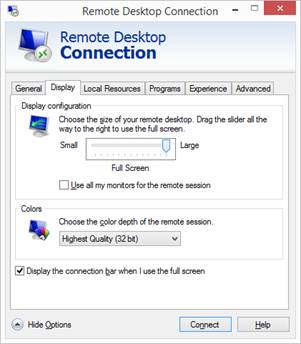
Alternative Option: Edit the Remote Desktop icon’s resolution by right-clicking it and clicking Edit on the drop-down menu. Select the Display tab and under the Display Configuration section you can adjust the resolution. The default setting should be Full Screen. WARNING: If you change the display resolution away from Full Screen you might get scroll bars around the Remote Desktop window.
o
o

Things to Avoid
Avoid changing the resolution on the server itself as it affects all remote users.
If at all possible avoid making text larger as it can negatively affect wording in programs and reporting.