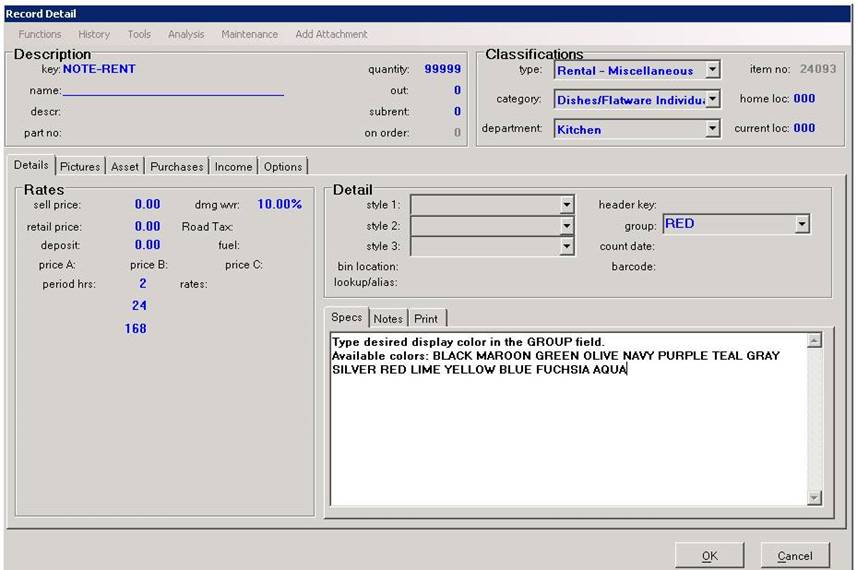
Overview: While Point-of-Rental™ has always had the Item Comments function for printing notes on contracts, we have recently added a new method for adding a note to a contract that will allow the note to print in a larger font, bold font, and a color if desired. Using Note Items you can enhance the look of your contract and the communication with your customer.
1. First, you will need to create an item.
a. The key needs to begin with
NOTE
b. Enter 99999 in the quantity field.
c. The type needs to
be Rental-Miscellaneous or Sale-Miscellaneous. The type will determine where the
note shows on the contract. A rental note will appear with the rental items and
the sale note will print with the sale items.
d. Choose a
category.
e. The rental rates and the sell price should be zero or
blank.
f. In the GROUP field you can enter most standard windows colors
and the note will show in that color on the contract when printed or emailed
(assuming you have a color printer)
*Note: If you recently
purchased or updated Point-of-Rental™ you will see a rental and a sale note
already set up in the system.
2. To use your new item, simply add it to a contract, enter a quantity of 1 and set the price to zero. Then enter the note as you would like it to appear when the system prompts you to enter the item name. Your note can be up to thirty characters long.