Overview: Proper A/R procedures using Point-of-Rental Systems
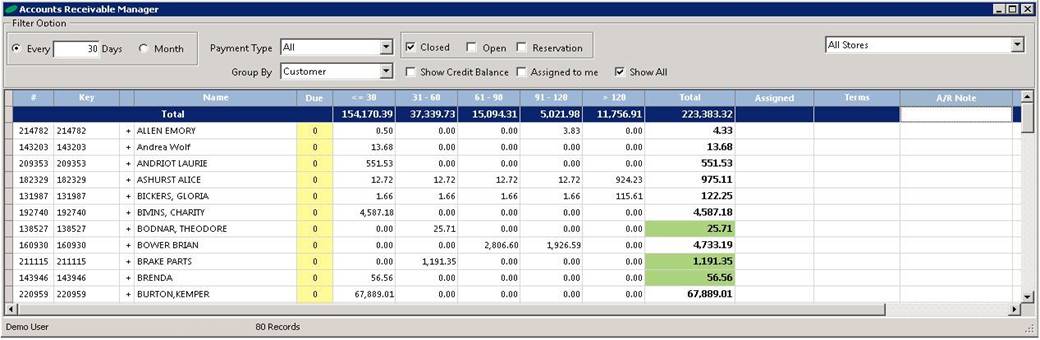
How to get there: Program Menu > Accounts Receivable > Accounts Receivable Manager
Filter the following to your specifications:
* Note - Top Line in bold indicates total dollar amount of receivables in that given time frame. (30, 31-60, 61-90, 91-120, 120 days over due and total of all receivables).
Days You can enter the number of days the account is overdue. The system will show you in increments of the day entered. (Ex. 5 days entered, will show 5, 10, 15 days. If entering 30 days, it will show (30, 60, 90, 120)
Payment Type: Allows you to choose account or cash customer
Group By Allows you to select customers by (Type, Group, Sales Rep, or Jobsite).
Closed Allows you to select all closed contracts with money due on the contract.
Open Allows you to select all open contracts with money due on the contract.
Reservation Allows you to select all reservations with money due on the contract
Show Credit Balance Allows you to see all credit balances due. Checking the box will show customer credits
Assigned to Me Allows you to see all Customer Accounts assigned to you.
Show All Shows all Accounts
Due Column - This column displays number of days until the next call date.

*Note: Double Clicking this field opens the customer manager screen were you can access the customer’s information and telephone number.

Assigned to: right click on a customer’s name, and selecting Edit A/R Details option allows you to access the customer’s call frequency, enter internal accounts receivable notes, assign an Operator, enter a call log, or select the type of call.
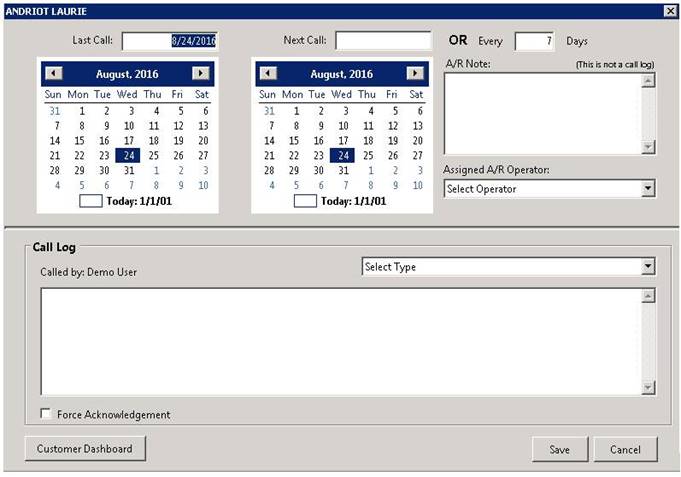
Next Call - Allows you to set the date for the next reminder or call to be number days in future.
A/R Notes - Allows you to enter internal notes for your Accounts Receivable employees.
Assigned A/R Operation- Allows you to assign an employee to a particular customers account. This person would be in charge of contacting the customer for payments.
Export to Spreadsheet - Allows you to export the call logs to a excel spreadsheet.
Forced Acknowledgement- Allows the call log to populate when anyone looks up the customer record.
Select Type- Allows you to create reports pertaining to the call logs.
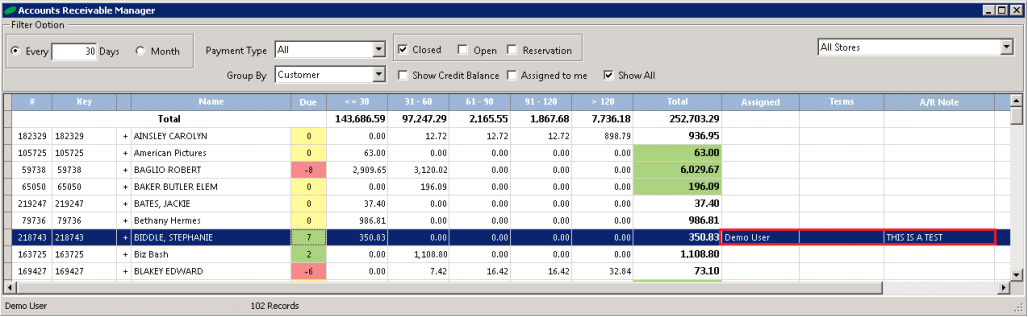
•Once you have finished your call logs, click save, you can now move on to the next customer that you need to call. You will notice in the dashboard the Assigned and A/R Notes have information in the appropriate columns, allowing you to see customer has been contacted.
Making an Account Payment through Account Mananger
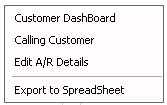
You can make payments to customers accounts through the Accounts Recievable Manager, Right click on the either the key or the customer name, will display customer detailed information box, such as (Customer Dashboard, Calling Customer, Edit A/R Details and Export to spreadsheet).
Customer Dashboard – This will show you a list of all contracts relating to the customer (Quote, Reservation, Open, Closed and Completed) contracts. You will able to make payment to customer’s account , run reports, print statements, view calls and schedule tasks.
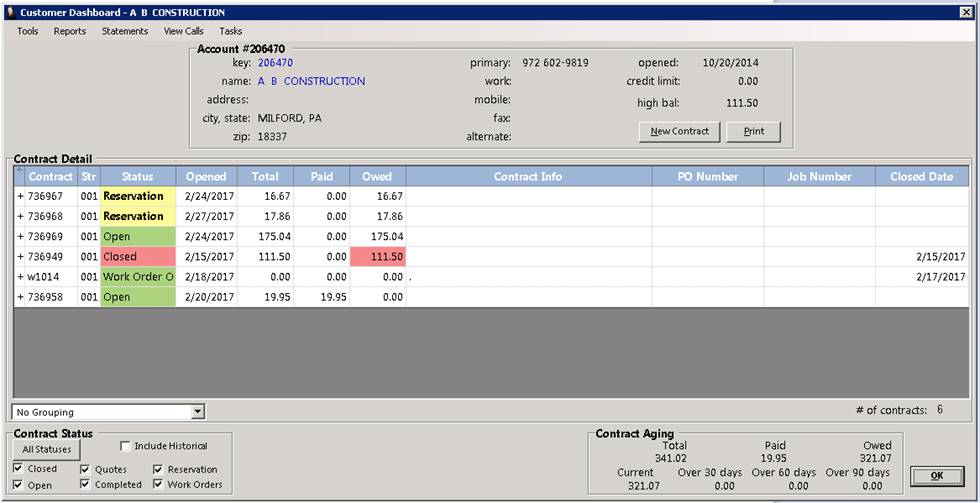
To make a payment, select tools, make a payment, click on the following link on how to make an account payment