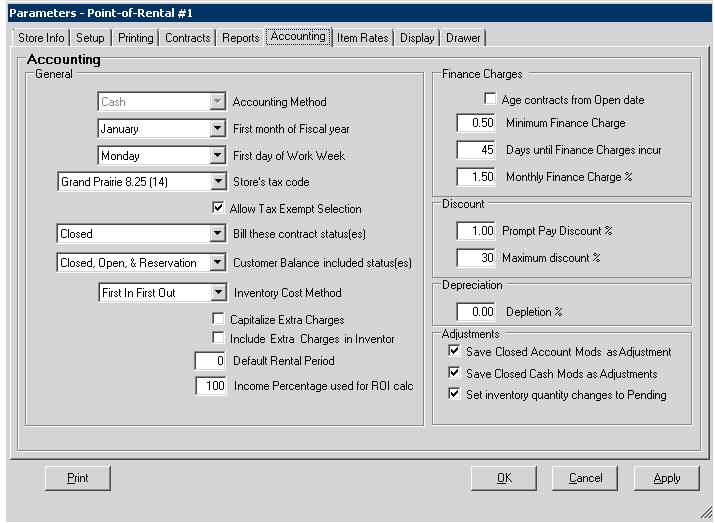
The selections for the
Reports tab are as follows:
General:
Accounting Method– This parameter selects the method that will be used to determine when income is posted to the totals. You cannot change this parameter directly: you must run the Change Accounting program to change it.
Cash Method – means contracts are not posted to income until they are fully paid
Open Accrual Method – means contracts are posted to income upon opening the contract (Reservation depend on “Bill these contract status” parameter) .
Closed Accrual Method – means contracts are posted to income until the contract is closed (all items returned).
*Note: The following restrictions apply to Cash Accounting only:
1. Any payment or any partial payment of an Open or Reservation account contract will not be recognized as a sale until the contract is closed and paid in full.
2. “Charge by default” contracts for cash customers will not be recognized as a sale unit full payment is received for the contract. If the “charged by default” occurs upon return of the items (i.e. unpaid overtime) the entire contract amount will be subtracted from the current day’s sales. It will be added back in when full payment is received.
First month of fiscal year –This parameter is used in the Calendar program as well as the Comparatives total. Select the first month of your fiscal year from the pull down menu.
First day of Work Week – This parameter is used in the Time Clock program. This day is used for the default starting day of the Time Clock Report as well as the weekly totals on time clock entry inquire. Select the first day of your workweek from the pull down menu.
Store Tax Code – This specifies the tax jurisdiction in which your store is located, and thus defines the default tax rates to be charged. This tax jurisdiction must be defined in the Tax Table.
Allow Tax Exempt Selection – A check mark means that customer contract can be marked as tax exempt by simply selection Tax Exempt or by checking the Tax Exempt box under the information tab in contract processing. Unchecked means that a customer contract can be set to tax exempt by selection a tax jurisdiction that is setup to not charge tax. This option is used if you need to breakout the tax exempt contracts by type of tax exemption such as resale, far, government, etc.
Bill these contract status(es) – This parameter defines when to bill contracts on statements as follows:
Bill for closed contracts only
Bill for open and closed contracts only
Bill for all contracts (Reservation, Open, Closed)
If you are using open accrual income accounting, billing for “Closed contracts only”or “Open and Closed” contracts only cause income for Reservation contracts to be delayed until the contract is opened or canceled. Billing for Reservations will cause income to be reported at the time the reservation contract is written.
Customer Balance included status(es) – This parameter defines what contract status(es) are included in the customer’s current balance. The current balance is used for credit limit checking.
Inventory Cost Method – This parameter selects the method used to allocate cost on resale inventory. First In First Out means that the resale inventory received firs is sold first. In other works the oldest inventory is sold. This is standard setting for most rental stores. Last In first Out means that the resale inventory just received is sold first. In other words, the newest inventory is always sold an the oldest inventory is never sold unless you sell everything.
Capitalize Extra Charges –This parameter sets whether Extra Charges within an item record are capitalized with the purchase price. If you use the Purchase Order module, the shipping charges, tax, and miscellaneous charges are automatically entered into the item’s Extra Charges field. If you are not using the Purchase Order module, you would have to manually add amounts to the Extra Charges field. If you capitalize extra charges, then shipping, taxes, and miscellaneous charges would be charged to your asset account and not expensed.
Include Extra Charges in Inventory – This parameter sets whether Extra Charges within a sales item are included in the inventory value. If you use the Purchase Order module, the shipping charges, tax, and miscellaneous charges are automatically entered into the item’s Extra Charges field. If you are not using the Purchase Order module, you would have to manually add amounts to the Extra Charges field. If you include extra charges, then shipping, taxes, and miscellaneous charges would be charged to your asset account and not expensed.
Default Rental Period – This parameter sets the default rental period when opening a new contract. If this option is set to anything greater than 0, it will override the minimum rate in the item record as being the default time period
Income Percentage used for ROI calc – Percentage of income counting toward the ROI calculations minus the percentage of overhead associated with your items. This will provide a truer number of what the net return was on that investment.
Finance Charges:
Age contracts from open date - A check mark means that contract aging will be based on the date contracts are opened. Unchecked means that it will be based on the date contracts are closed (all rental items returned).
Minimum Finance Charge - If a finance charge is levied on a customer and the charge is less than this amount, then this amount will be charged.
Days until Finance Charges Incur - This is the default number of days aged a payable contract needs to be before charging finance charges. Note when a contract becomes “payable” is determined by the parameter “Bill these contract status(es).
Monthly Finance Charge %- This is used to calculate the finance charge for customers that have a balance over the “Days until finance charge incur” parameter. It must be entered as the finance percent. For example 1.50% would be entered as 1.50.
Discount:
Prompt Pay Discount % - This is used to calculate the maximum prompt pay discount that can be taken when receiving payments through Account Payments. A zero will disable this feature.
Maximum Discount % - The maximum discount percentage allowed on a contract. For example, 25 would limit the discount to 25%. You can override this maximum on a customer by customer basis using the Discount Tables.
Depreciation:
Depletion % - This parameter sets the depletion percentage used for depreciation. This is only used if the Depletion method is chosen for depreciable items.
Adjustments:
Save Closed Account Mods as Adjustments – With this parameter set, each time a closed account contract is modified an adjustment contract will be created. The adjustment contract will list any items that were modified, the price adjustment and any change in totals such as taxes or damage waiver. The contract number will follow the credit contract format where it starts with a “c”.
Save Closed Cash Mods as Adjustments – With this parameter set, each time a closed cash contract is modified an adjustment contract will be created. The adjustment contract will list any items that were modified, the price adjustment and any change in totals such as taxes or damage waiver. The contract number will follow the credit contract format where it starts with a “c”.
Save inventory quantity changes to Pending – With this parameter checked, any changes to inventory quantity will only hold the changes under pending. You would need to go into Inventory Count and Finalize Count to make the actual changes to the records.