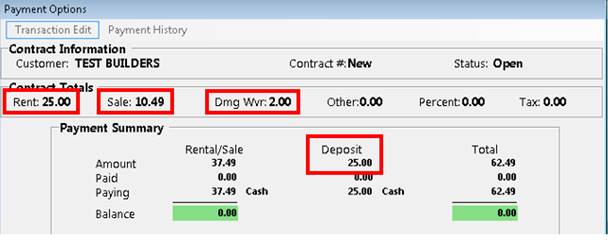
In this example, the total Rental amount, Sale amount, Damage Waiver and Deposit are passed to the Epicor Point of Sale screen. Tax is calculated in Epicor. For Point-of-Rental Account customers, Data is normally passed from Point-of-Rental to Point of Sale only when the contract is closed. For more information on configuring the account customer see User Profile Configuration.
The interface is executed when either the Print or No Print buttons are clicked.
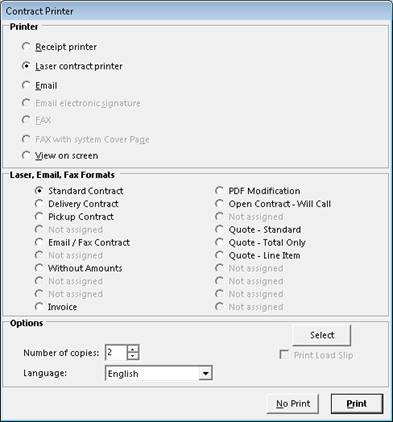
The Point of Sale screen must be open with the cursor in the Item (SKU) field for the interface to work.

The Account Customer SKU is passed for the specific customer into Epicor. To designate a customer as an Account Customer please see Customer Configuration .Lines 1 – 3 show the Rent Deposit, Damage Waiver and Rental amounts passed from Point of Rental. The Point of Rental item on Line 4 is mapped specifically to SKU 56. The Point of Rental Category ‘FUEL’ for the DIESEL item on Line 5 is mapped to the Epicor FUEL SKU. For more information about mapping Point-of-Rental items to Epicor SKUs see Item Configuration.

If there is a discrepancy when sending the contract information from Point of Rental to Epicor Point of Sale, a SalesPayments dialog appears:
This can happen when a partial refund of an item is given.

The user must double-click the Price cell to move the dollar amount to the Paid cell. This also reduces the Funds Remaining by the Price amount.

The user must click the OK button to send the contract to Point of Sale. Clicking Cancel will send nothing to Point of Sale.
*This must be done because Epicor will not accept a negative dollar amount. The interface is designed to use the absolute value of the price and change the quantity to a negative amount.
If the interface fails to send from Point of Rental to Epicor Point of Sale, a File Upload Error dialog appears:

Close and re-open the Point of Sale screen to make sure it is open and the cursor is in the Item (SKU) field.
Click “Resend contract” to attempt to resend from Point of Rental to Epicor Point of Sale.
Or click “Show records(s)” to view and attempt to resend from Point of Rental to Epicor Point of Sale.
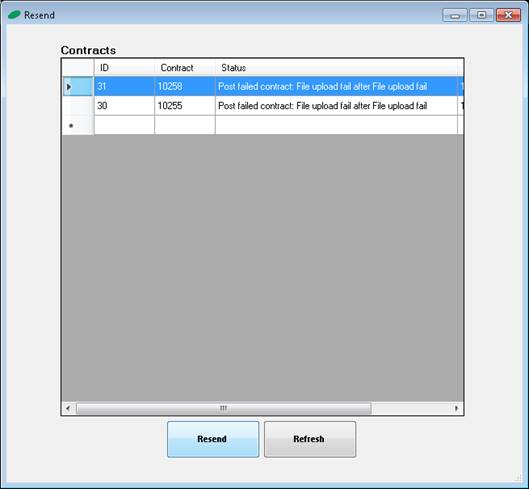
Select the line and click “Resend” to resend from Point of Rental to Epicor Point of Sale.
Click “Cancel” to ignore the File Upload Error.